<?xml version="1.0" encoding="utf-8"?><feed xmlns="http://www.w3.org/2005/Atom" ><generator uri="https://jekyllrb.com/" version="4.4.1">Jekyll</generator><link href="https://irrational.net/feed.xml" rel="self" type="application/atom+xml" /><link href="https://irrational.net/" rel="alternate" type="text/html" /><updated>2026-04-09T14:44:54+00:00</updated><id>https://irrational.net/feed.xml</id><title type="html">Clayton’s Domain</title><subtitle>My name is Clayton Smith. I&apos;m an amateur radio operator (call sign VE3IRR), Esperanto speaker, computer security researcher, and hardware hacker.</subtitle><author><name>Clayton Smith</name></author><entry><title type="html">Adding MP11 support to a Sangean HDR-14</title><link href="https://irrational.net/2024/08/24/adding-mp11-support-to-a-sangean-hdr-14/" rel="alternate" type="text/html" title="Adding MP11 support to a Sangean HDR-14" /><published>2024-08-24T19:40:00+00:00</published><updated>2024-08-24T19:40:00+00:00</updated><id>https://irrational.net/2024/08/24/adding-mp11-support-to-a-sangean-hdr-14</id><content type="html" xml:base="https://irrational.net/2024/08/24/adding-mp11-support-to-a-sangean-hdr-14/"><![CDATA[<p>Recently I bought a Sangean HDR-14 radio, because I wanted to experiment with HD Radio emergency alerts. While some parts of the emergency alert system are described in the NRSC-5-E standard, important details are missing. For instance, the format of the control (CNT) data is not specified. As a result, some reverse engineering will be needed to bring emergency alert support to <a href="https://github.com/argilo/gr-nrsc5">gr-nrsc5</a> and <a href="https://github.com/theori-io/nrsc5">nrsc5</a>. The work is progressing well, and I’ve already added emergency alert encoding to gr-nrsc5. Control data decoding in nrsc5 should follow soon.</p>

<h2 id="firmware-hacking">Firmware hacking</h2>

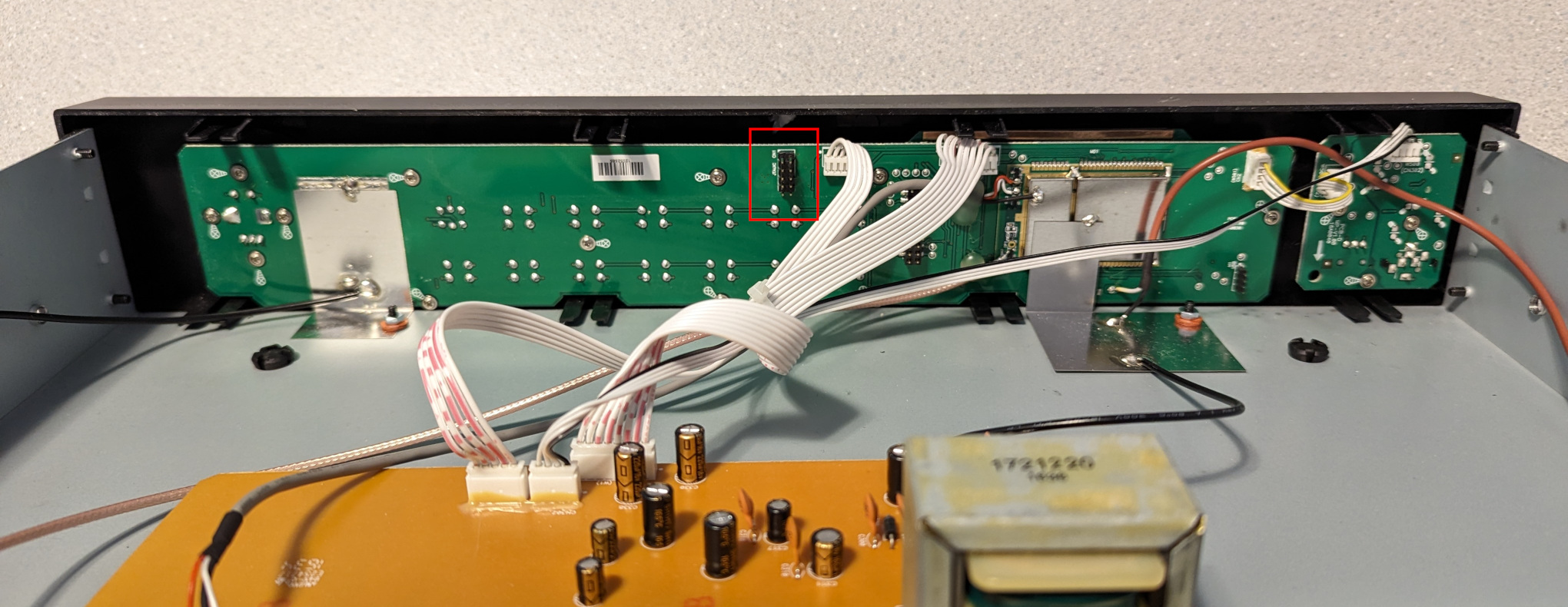
<p>In <a href="/2024/03/25/hacking-a-sangean-hdt-20/">a previous post</a>, I extracted the firmware from a Sangean HDT-20 and modified it to add support for the <a href="https://www.radioworld.com/tech-and-gear/digital-radio/the-story-of-the-fm-iboc-mp11-mode">MP11 mode</a>, which is missing in most receivers. Unsurprisingly, the HDR-14 also lacks support for MP11, so I decided to take a crack at adding it. The first step was to open the radio and have a look at the circuit board:</p>

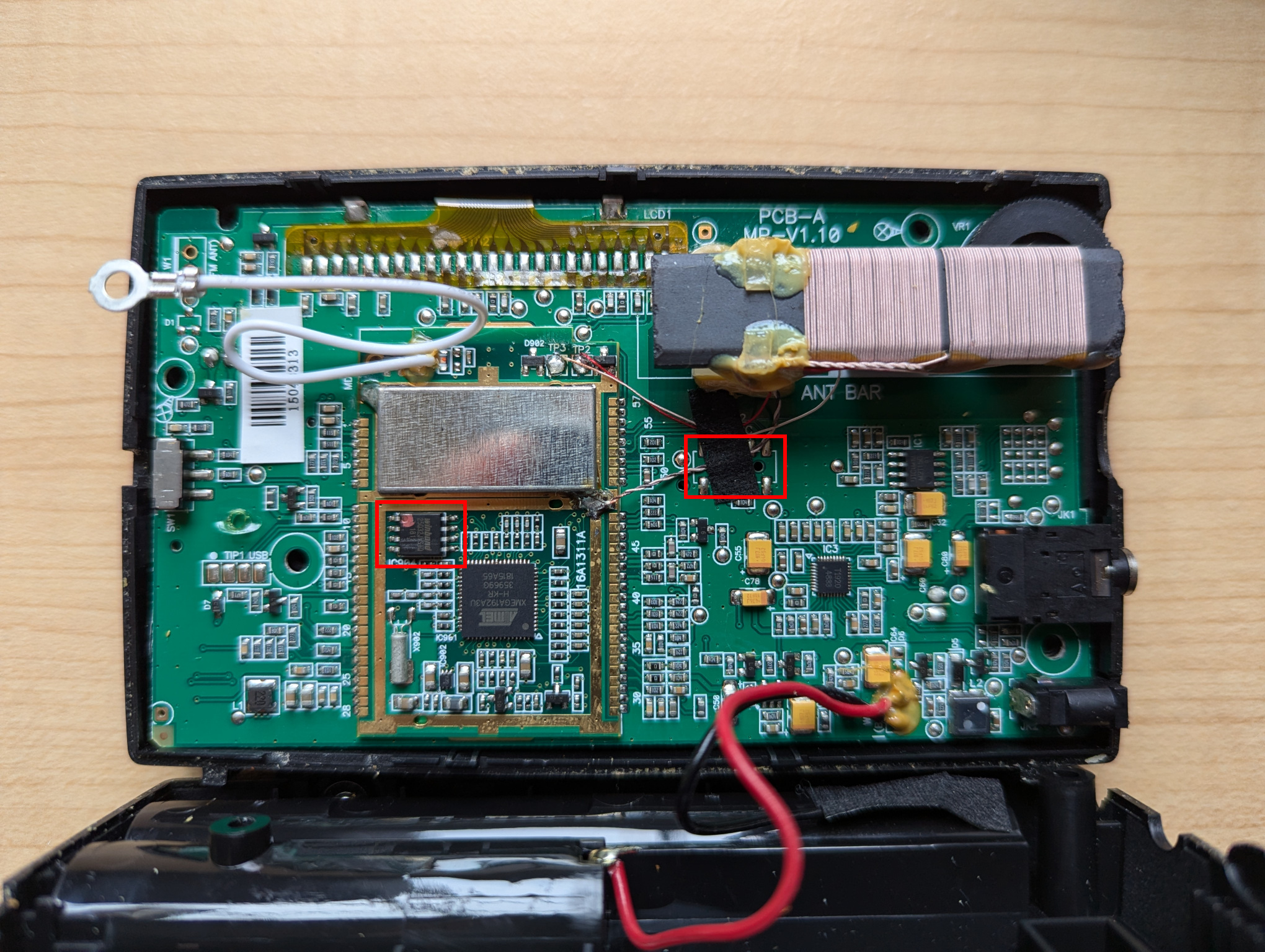
<p><img src="/images/hdr-14-interior.jpg" alt="interior view of a Sangean HDR-14 showing the locations of the JTAG port and SPI flash" /></p>

<p>Like the HDT-20, this radio is based on an Atmel ATxmega192A3U microcontroller. Next to the microcontroller, a Winbond W25Q32JV 4 MB flash memory can be seen. (We’ll come back to that later.) And below the AM antenna, beneath a piece of tape, are 10 solder pads which appear to be a JTAG port. I confirmed with a continuity tester that the pads are in fact connected to the microcontroller’s JTAG pins, and soldered a 10-wire cable onto the pads so that I could connect my Atmel-ICE debugger.</p>

<p>It worked! Using the Microchip Studio Command Prompt on my Windows machine, I was able to extract the firmware with the following command:</p>

<div class="language-plaintext highlighter-rouge"><div class="highlight"><pre class="highlight"><code>atprogram -t atmelice -i jtag -d ATxmega192A3 read -fl -o 0x0 -s 0x30000 --format bin -f hdr14_app_section.bin
</code></pre></div></div>

<p>Back on my Linux machine, I converted the firmware dump to ELF and disassembled it:</p>

<div class="language-plaintext highlighter-rouge"><div class="highlight"><pre class="highlight"><code>avr-objcopy -I binary -O elf32-avr hdr14_app_section.bin hdr14_app_section.elf
avr-objdump -D hdr14_app_section.elf &gt; hdr14_app_section.asm
</code></pre></div></div>

<p>In the disassembly, I found the same code fragment that I had patched in the HDT-20 firmware:</p>

<pre>
   19276:	60 91 ed 37 	lds	r22, 0x37ED
   1927a:	70 91 ee 37 	lds	r23, 0x37EE
   1927e:	80 e0       	ldi	r24, <b>0x00</b>
   19280:	91 e3       	ldi	r25, <b>0x31</b>
   19282:	0e 94 c6 7c 	call	<b>0xf98c</b>
   19286:	60 91 e9 37 	lds	r22, 0x37E9
   1928a:	70 91 ea 37 	lds	r23, 0x37EA
   1928e:	81 e0       	ldi	r24, <b>0x01</b>
   19290:	91 e3       	ldi	r25, <b>0x31</b>
   19292:	0e 94 c6 7c 	call	<b>0xf98c</b>
   19296:	60 91 e5 37 	lds	r22, 0x37E5
   1929a:	70 91 e6 37 	lds	r23, 0x37E6
   1929e:	82 e0       	ldi	r24, <b>0x02</b>
   192a0:	91 e3       	ldi	r25, <b>0x31</b>
   192a2:	0e 94 c6 7c 	call	<b>0xf98c</b>
   192a6:	60 e0       	ldi	r22, 0x00
   192a8:	70 e0       	ldi	r23, 0x00
   192aa:	81 e0       	ldi	r24, <b>0x01</b>
   192ac:	95 e3       	ldi	r25, <b>0x35</b>
   192ae:	0e 94 c6 7c 	call	<b>0xf98c</b>
</pre>

<p>As before, this code sets the <code class="language-plaintext highlighter-rouge">FM_SEEK_BAND_BOTTOM</code> (0x3100), <code class="language-plaintext highlighter-rouge">FM_SEEK_BAND_TOP</code> (0x3101), <code class="language-plaintext highlighter-rouge">FM_SEEK_FREQUENCY_SPACING</code> (0x3102), and <code class="language-plaintext highlighter-rouge">FM_SOFTMUTE_SNR_ATTENUATION</code> (0x3501) properties. This time, the address of the <code class="language-plaintext highlighter-rouge">SET_PROPERTY</code> routine is 0xf98c.</p>

<p>Like with the HDT-20, we’ll do the following:</p>

<ol>
  <li>Replace the code that sets the <code class="language-plaintext highlighter-rouge">FM_SOFTMUTE_SNR_ATTENUATION</code> property with a jump to a free address. We’ll use address 0x2f000.</li>
  <li>At that address, write some code that sets the <code class="language-plaintext highlighter-rouge">FM_SOFTMUTE_SNR_ATTENUATION</code> property as well as the <code class="language-plaintext highlighter-rouge">HD_SERVICE_MODE_CONTROL_MP11_ENABLE</code> property, then jumps back to address 0x192b2 (which is the address of the next instruction after the code fragment above).</li>
</ol>

<p>We need only a single instruction to jump to address 0x2f000:</p>

<div class="language-plaintext highlighter-rouge"><div class="highlight"><pre class="highlight"><code>jmp 0x2f000
</code></pre></div></div>

<p>To assemble this and print the machine code in hexidecimal format, I ran the following:</p>

<div class="language-plaintext highlighter-rouge"><div class="highlight"><pre class="highlight"><code>avr-as -o patch1.o -mmcu=atxmega192a3 patch1.asm
avr-objcopy -O binary -j .text patch1.o patch1.bin
xxd -p patch1.bin
</code></pre></div></div>

<p>The final output is <code class="language-plaintext highlighter-rouge">0d940078</code>, which we will write at address 0x192a6, replacing two <code class="language-plaintext highlighter-rouge">ldi</code> instructions.</p>

<p>The code to set the two properties and jump back to address 0x192b2 is:</p>

<div class="language-plaintext highlighter-rouge"><div class="highlight"><pre class="highlight"><code>ldi  r22, 0x00
ldi  r23, 0x00
ldi  r24, 0x01
ldi  r25, 0x35
call 0xf98c
ldi  r22, 0x01
ldi  r23, 0x00
ldi  r24, 0x00
ldi  r25, 0x9A
call 0xf98c
jmp  0x192b2
</code></pre></div></div>

<p>After assembly, the final hexidecimal output is <code class="language-plaintext highlighter-rouge">60e070e081e095e30e94c67c61e070e080e09ae90e94c67c0c9459c9</code>, which we will write at address 0x2f000.</p>

<p>The final commands to patch the firmware using the Atmel-ICE debugger are:</p>

<div class="language-plaintext highlighter-rouge"><div class="highlight"><pre class="highlight"><code>atprogram -t atmelice -i jtag -d ATxmega192A3 write -fl -o 0x192a6 --values 0d940078
atprogram -t atmelice -i jtag -d ATxmega192A3 write -fl -o 0x2f000 --values 60e070e081e095e30e94c67c61e070e080e09ae90e94c67c0c9459c9
</code></pre></div></div>

<p>The patch works, and the radio can now receive all subchannels in an MP11 signal! 🎉</p>

<p>If desired, the original firmware can be restored like so:</p>

<div class="language-plaintext highlighter-rouge"><div class="highlight"><pre class="highlight"><code>atprogram -t atmelice -i jtag -d ATxmega192A3 write -fl -o 0x192a6 --values 60e070e0
atprogram -t atmelice -i jtag -d ATxmega192A3 write -fl -o 0x2f000 --values ffffffffffffffffffffffffffffffffffffffffffffffffffffffff
</code></pre></div></div>

<p><em>Note:</em> These commands worked with my radio, which is running firmware HDR-14 P03. If your radio is running a different firmware version, it’s likely that the memory addresses will need to be changed.</p>

<h2 id="flash-memory">Flash memory</h2>

<p>Now let’s return to the Winbond flash memory chip mentioned above. According to the datasheet, it’s a serial NOR flash. The Raspberry Pi has a SPI interface, and it should be possible to connect to the chip using the <code class="language-plaintext highlighter-rouge">flashrom</code> utility.</p>

<p>After enabling the SPI interface in <code class="language-plaintext highlighter-rouge">raspi-config</code> (Interface Options → SPI) and connecting the Raspberry Pi’s GPIO pins to the flash chip (following the <a href="https://wiki.flashrom.org/RaspberryPi#Connecting_the_flash_chip">instructions in the flashrom wiki</a>, and using the test clips that came with my Saleae logic analyzer), I was able to extract the flash memory:</p>

<div class="language-plaintext highlighter-rouge"><div class="highlight"><pre class="highlight"><code>flashrom -p linux_spi:dev=/dev/spidev0.0,spispeed=1000 -r hdr14_flash.bin
</code></pre></div></div>

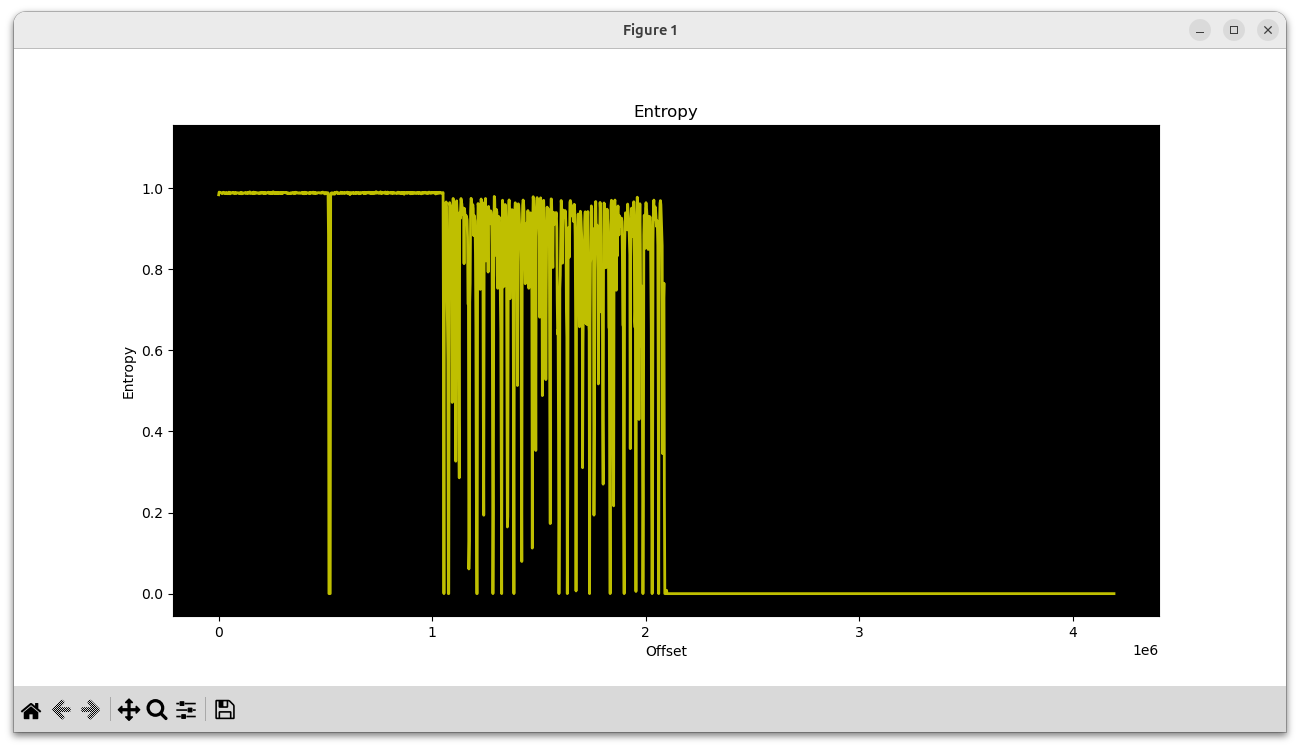
<p>The <code class="language-plaintext highlighter-rouge">binwalk</code> utility didn’t identify anything in the dump, so I used its “entropy” mode to visualize the data:</p>

<div class="language-plaintext highlighter-rouge"><div class="highlight"><pre class="highlight"><code>binwalk -E hdr14_flash.bin
</code></pre></div></div>

<p><img src="/images/hdr-14-flash-entropy.png" alt="entropy analysis of HDR-14 flash memory" /></p>

<p>In the first megabyte, two high-entropy chunks can be seen. The next megabyte is a chunk with varying entropy, and the final two megabytes are empty.</p>

<p>With <code class="language-plaintext highlighter-rouge">hexdump</code>, we can see that the first two chunks are very likely firmware for the Si468x HD Radio receiver chip:</p>

<div class="language-plaintext highlighter-rouge"><div class="highlight"><pre class="highlight"><code>00000000  53 49 4c 41 42 53 5f 46  4c 41 53 48 70 de 07 00  |SILABS_FLASHp...|
00000010  01 00 00 00 00 00 00 00  00 00 00 00 78 56 34 12  |............xV4.|
00000020  00 00 00 00 30 00 00 00  3c 14 b3 48 2e 00 00 00  |....0...&lt;..H....|
00000030  01 00 00 00 94 40 bf 67  fd 1b ae a5 17 ad 40 4f  |.....@.g......@O|
</code></pre></div></div>

<div class="language-plaintext highlighter-rouge"><div class="highlight"><pre class="highlight"><code>00080000  53 49 4c 41 42 53 5f 46  4c 41 53 48 cc 13 08 00  |SILABS_FLASH....|
00080010  01 00 00 00 00 00 00 00  00 00 00 00 78 56 34 12  |............xV4.|
00080020  00 00 00 00 30 00 00 00  3c 14 b3 48 2e 00 00 00  |....0...&lt;..H....|
00080030  01 00 00 00 c7 aa 5a 38  37 0c 67 33 e1 79 bb f0  |......Z87.g3.y..|
</code></pre></div></div>

<p>It makes sense that there would be two of them; one for FM and one for AM.</p>

<p>Then beginning at offset 0x102000 is the mixed-entropy chunk:</p>

<div class="language-plaintext highlighter-rouge"><div class="highlight"><pre class="highlight"><code>00102000  28 00 00 00 00 58 00 00  00 40 00 00 00 40 00 00  |(....X...@...@..|
00102010  00 38 00 00 00 b8 00 00  00 90 00 00 00 40 00 00  |.8...........@..|
00102020  00 38 00 00 00 b0 00 00  00 a0 00 00 00 68 00 00  |.8...........h..|
00102030  00 78 00 00 00 40 00 00  00 48 00 00 00 c8 00 00  |.x...@...H......|
00102040  00 40 00 00 00 48 00 00  00 30 00 00 00 40 00 00  |.@...H...0...@..|
00102050  00 48 00 00 00 a8 00 00  00 98 00 00 00 a0 00 00  |.H..............|
00102060  00 78 00 00 00 80 00 00  00 50 00 00 00 50 00 00  |.x.......P...P..|
00102070  00 50 00 00 00 88 00 00  00 38 00 00 00 c8 00 00  |.P.......8......|
00102080  00 70 00 00 00 68 00 00  00 38 00 00 00 48 00 00  |.p...h...8...H..|
00102090  00 a8 00 00 00 78 00 00  00 48 00 00 80 0c 00 00  |.....x...H......|
001020a0  80 0c 00 00 21 00 29 00  29 00 2a 00 30 00 33 00  |....!.).).*.0.3.|
001020b0  39 00 42 00 4a 00 49 00  4e 00 50 00 53 00 5d 00  |9.B.J.I.N.P.S.].|
001020c0  5f 00 63 00 63 00 62 00  6c 00 6f 00 70 00 74 00  |_.c.c.b.l.o.p.t.|
001020d0  79 00 79 00 7b 00 88 00  85 00 84 00 8a 00 85 00  |y.y.{...........|
001020e0  80 00 80 00 79 00 77 00  71 00 6e 00 72 00 71 00  |....y.w.q.n.r.q.|
001020f0  69 00 60 00 5c 00 54 00  51 00 52 00 46 00 3b 00  |i.`.\.T.Q.R.F.;.|
</code></pre></div></div>

<p>I suspected this might be sound files for the emergency alert announcements (“Weather Alert”, “Safety Alert”, etc.) This turned out to be correct, as I was able to play back the audio by piping the data into aplay:</p>

<div class="language-plaintext highlighter-rouge"><div class="highlight"><pre class="highlight"><code>tail -c +1056769 hdr14_flash.bin | aplay -f S16_LE -r 16000
</code></pre></div></div>

<p>I heard “Alert, Down, 8, 80, Environmental Alert, …” There was a small amount of noise at the beginning, so I had a closer look and noticed that there appear to be 41 little-endian integers encoded at the start. Decoding them, we get:</p>

<p>40, 22528, 16384, 16384, 14336, 47104, …</p>

<p>40 is the number of recordings, and the numbers that follow are their lengths. With a bit of Python, the recordings can be dumped into WAV files:</p>

<div class="language-python highlighter-rouge"><div class="highlight"><pre class="highlight"><code><span class="c1">#!/usr/bin/env python3
</span>
<span class="kn">import</span> <span class="n">struct</span>
<span class="kn">import</span> <span class="n">wave</span>

<span class="n">SOUNDS_OFFSET</span> <span class="o">=</span> <span class="mh">0x00102000</span>
<span class="n">SOUND_NAMES</span> <span class="o">=</span> <span class="p">[</span>
    <span class="sh">"</span><span class="s">alert</span><span class="sh">"</span><span class="p">,</span>
    <span class="sh">"</span><span class="s">down</span><span class="sh">"</span><span class="p">,</span>
    <span class="sh">"</span><span class="s">8</span><span class="sh">"</span><span class="p">,</span>
    <span class="sh">"</span><span class="s">80</span><span class="sh">"</span><span class="p">,</span>
    <span class="sh">"</span><span class="s">environmental_alert</span><span class="sh">"</span><span class="p">,</span>
    <span class="sh">"</span><span class="s">fire_alert</span><span class="sh">"</span><span class="p">,</span>
    <span class="sh">"</span><span class="s">5</span><span class="sh">"</span><span class="p">,</span>
    <span class="sh">"</span><span class="s">4</span><span class="sh">"</span><span class="p">,</span>
    <span class="sh">"</span><span class="s">geophysical_alert</span><span class="sh">"</span><span class="p">,</span>
    <span class="sh">"</span><span class="s">hazmat_alert</span><span class="sh">"</span><span class="p">,</span>
    <span class="sh">"</span><span class="s">hd</span><span class="sh">"</span><span class="p">,</span>
    <span class="sh">"</span><span class="s">health_alert</span><span class="sh">"</span><span class="p">,</span>
    <span class="sh">"</span><span class="s">9</span><span class="sh">"</span><span class="p">,</span>
    <span class="sh">"</span><span class="s">90</span><span class="sh">"</span><span class="p">,</span>
    <span class="sh">"</span><span class="s">non_specific_alert</span><span class="sh">"</span><span class="p">,</span>
    <span class="sh">"</span><span class="s">off</span><span class="sh">"</span><span class="p">,</span>
    <span class="sh">"</span><span class="s">on</span><span class="sh">"</span><span class="p">,</span>
    <span class="sh">"</span><span class="s">1</span><span class="sh">"</span><span class="p">,</span>
    <span class="sh">"</span><span class="s">point</span><span class="sh">"</span><span class="p">,</span>
    <span class="sh">"</span><span class="s">preset</span><span class="sh">"</span><span class="p">,</span>
    <span class="sh">"</span><span class="s">rescue_alert</span><span class="sh">"</span><span class="p">,</span>
    <span class="sh">"</span><span class="s">safety_alert</span><span class="sh">"</span><span class="p">,</span>
    <span class="sh">"</span><span class="s">security_alert</span><span class="sh">"</span><span class="p">,</span>
    <span class="sh">"</span><span class="s">seek_down</span><span class="sh">"</span><span class="p">,</span>
    <span class="sh">"</span><span class="s">seek_up</span><span class="sh">"</span><span class="p">,</span>
    <span class="sh">"</span><span class="s">7</span><span class="sh">"</span><span class="p">,</span>
    <span class="sh">"</span><span class="s">70</span><span class="sh">"</span><span class="p">,</span>
    <span class="sh">"</span><span class="s">6</span><span class="sh">"</span><span class="p">,</span>
    <span class="sh">"</span><span class="s">test_alert</span><span class="sh">"</span><span class="p">,</span>
    <span class="sh">"</span><span class="s">3</span><span class="sh">"</span><span class="p">,</span>
    <span class="sh">"</span><span class="s">transportation_alert</span><span class="sh">"</span><span class="p">,</span>
    <span class="sh">"</span><span class="s">tune_down</span><span class="sh">"</span><span class="p">,</span>
    <span class="sh">"</span><span class="s">tune_up</span><span class="sh">"</span><span class="p">,</span>
    <span class="sh">"</span><span class="s">2</span><span class="sh">"</span><span class="p">,</span>
    <span class="sh">"</span><span class="s">up</span><span class="sh">"</span><span class="p">,</span>
    <span class="sh">"</span><span class="s">utilities_alert</span><span class="sh">"</span><span class="p">,</span>
    <span class="sh">"</span><span class="s">weather_alert</span><span class="sh">"</span><span class="p">,</span>
    <span class="sh">"</span><span class="s">0</span><span class="sh">"</span><span class="p">,</span>
    <span class="sh">"</span><span class="s">beep1</span><span class="sh">"</span><span class="p">,</span>
    <span class="sh">"</span><span class="s">beep2</span><span class="sh">"</span><span class="p">,</span>
<span class="p">]</span>

<span class="k">with</span> <span class="nf">open</span><span class="p">(</span><span class="sh">"</span><span class="s">hdr14_flash.bin</span><span class="sh">"</span><span class="p">,</span> <span class="sh">"</span><span class="s">rb</span><span class="sh">"</span><span class="p">)</span> <span class="k">as</span> <span class="n">f</span><span class="p">:</span>
    <span class="n">data</span> <span class="o">=</span> <span class="n">f</span><span class="p">.</span><span class="nf">read</span><span class="p">()</span>

<span class="n">offset</span> <span class="o">=</span> <span class="n">SOUNDS_OFFSET</span>

<span class="n">num_sounds</span> <span class="o">=</span> <span class="n">struct</span><span class="p">.</span><span class="nf">unpack</span><span class="p">(</span><span class="sh">"</span><span class="s">&lt;I</span><span class="sh">"</span><span class="p">,</span> <span class="n">data</span><span class="p">[</span><span class="n">offset</span><span class="p">:</span><span class="n">offset</span><span class="o">+</span><span class="mi">4</span><span class="p">])[</span><span class="mi">0</span><span class="p">]</span>
<span class="n">offset</span> <span class="o">+=</span> <span class="mi">4</span>

<span class="n">sound_lens</span> <span class="o">=</span> <span class="p">[]</span>
<span class="k">for</span> <span class="n">_</span> <span class="ow">in</span> <span class="nf">range</span><span class="p">(</span><span class="n">num_sounds</span><span class="p">):</span>
    <span class="n">sound_lens</span><span class="p">.</span><span class="nf">append</span><span class="p">(</span><span class="n">struct</span><span class="p">.</span><span class="nf">unpack</span><span class="p">(</span><span class="sh">"</span><span class="s">&lt;I</span><span class="sh">"</span><span class="p">,</span> <span class="n">data</span><span class="p">[</span><span class="n">offset</span><span class="p">:</span><span class="n">offset</span><span class="o">+</span><span class="mi">4</span><span class="p">])[</span><span class="mi">0</span><span class="p">])</span>
    <span class="n">offset</span> <span class="o">+=</span> <span class="mi">4</span>

<span class="k">for</span> <span class="n">sound_len</span><span class="p">,</span> <span class="n">sound_name</span> <span class="ow">in</span> <span class="nf">zip</span><span class="p">(</span><span class="n">sound_lens</span><span class="p">,</span> <span class="n">SOUND_NAMES</span><span class="p">):</span>
    <span class="n">sound_data</span> <span class="o">=</span> <span class="n">data</span><span class="p">[</span><span class="n">offset</span><span class="p">:</span><span class="n">offset</span><span class="o">+</span><span class="n">sound_len</span><span class="p">]</span>
    <span class="n">offset</span> <span class="o">+=</span> <span class="n">sound_len</span>

    <span class="n">w</span> <span class="o">=</span> <span class="n">wave</span><span class="p">.</span><span class="nf">open</span><span class="p">(</span><span class="sa">f</span><span class="sh">"</span><span class="si">{</span><span class="n">sound_name</span><span class="si">}</span><span class="s">.wav</span><span class="sh">"</span><span class="p">,</span> <span class="sh">"</span><span class="s">wb</span><span class="sh">"</span><span class="p">)</span>
    <span class="n">w</span><span class="p">.</span><span class="nf">setnchannels</span><span class="p">(</span><span class="mi">1</span><span class="p">)</span>
    <span class="n">w</span><span class="p">.</span><span class="nf">setsampwidth</span><span class="p">(</span><span class="mi">2</span><span class="p">)</span>
    <span class="n">w</span><span class="p">.</span><span class="nf">setframerate</span><span class="p">(</span><span class="mi">16000</span><span class="p">)</span>
    <span class="n">w</span><span class="p">.</span><span class="nf">writeframes</span><span class="p">(</span><span class="n">sound_data</span><span class="p">)</span>
    <span class="n">w</span><span class="p">.</span><span class="nf">close</span><span class="p">()</span>
</code></pre></div></div>

<p>In addition to the emergency alert messages, there are also recordings for voice prompts (“seek up”, “seek down”, “preset”, etc). I suspect these are unused, because the HDR-14 does not appear to have a voice prompt feature. It could be that the same flash memory is used in more than one Sangean model.</p>

<p>It would be fun to swap out the alert sounds with custom versions and write those back to the flash chip, but I’ll leave that project for another day.</p>]]></content><author><name>Clayton Smith</name></author><summary type="html"><![CDATA[Recently I bought a Sangean HDR-14 radio, because I wanted to experiment with HD Radio emergency alerts. While some parts of the emergency alert system are described in the NRSC-5-E standard, important details are missing. For instance, the format of the control (CNT) data is not specified. As a result, some reverse engineering will be needed to bring emergency alert support to gr-nrsc5 and nrsc5. The work is progressing well, and I’ve already added emergency alert encoding to gr-nrsc5. Control data decoding in nrsc5 should follow soon. Firmware hacking In a previous post, I extracted the firmware from a Sangean HDT-20 and modified it to add support for the MP11 mode, which is missing in most receivers. Unsurprisingly, the HDR-14 also lacks support for MP11, so I decided to take a crack at adding it. The first step was to open the radio and have a look at the circuit board: Like the HDT-20, this radio is based on an Atmel ATxmega192A3U microcontroller. Next to the microcontroller, a Winbond W25Q32JV 4 MB flash memory can be seen. (We’ll come back to that later.) And below the AM antenna, beneath a piece of tape, are 10 solder pads which appear to be a JTAG port. I confirmed with a continuity tester that the pads are in fact connected to the microcontroller’s JTAG pins, and soldered a 10-wire cable onto the pads so that I could connect my Atmel-ICE debugger. It worked! Using the Microchip Studio Command Prompt on my Windows machine, I was able to extract the firmware with the following command: atprogram -t atmelice -i jtag -d ATxmega192A3 read -fl -o 0x0 -s 0x30000 --format bin -f hdr14_app_section.bin Back on my Linux machine, I converted the firmware dump to ELF and disassembled it: avr-objcopy -I binary -O elf32-avr hdr14_app_section.bin hdr14_app_section.elf avr-objdump -D hdr14_app_section.elf &gt; hdr14_app_section.asm In the disassembly, I found the same code fragment that I had patched in the HDT-20 firmware: 19276: 60 91 ed 37 lds r22, 0x37ED 1927a: 70 91 ee 37 lds r23, 0x37EE 1927e: 80 e0 ldi r24, 0x00 19280: 91 e3 ldi r25, 0x31 19282: 0e 94 c6 7c call 0xf98c 19286: 60 91 e9 37 lds r22, 0x37E9 1928a: 70 91 ea 37 lds r23, 0x37EA 1928e: 81 e0 ldi r24, 0x01 19290: 91 e3 ldi r25, 0x31 19292: 0e 94 c6 7c call 0xf98c 19296: 60 91 e5 37 lds r22, 0x37E5 1929a: 70 91 e6 37 lds r23, 0x37E6 1929e: 82 e0 ldi r24, 0x02 192a0: 91 e3 ldi r25, 0x31 192a2: 0e 94 c6 7c call 0xf98c 192a6: 60 e0 ldi r22, 0x00 192a8: 70 e0 ldi r23, 0x00 192aa: 81 e0 ldi r24, 0x01 192ac: 95 e3 ldi r25, 0x35 192ae: 0e 94 c6 7c call 0xf98c As before, this code sets the FM_SEEK_BAND_BOTTOM (0x3100), FM_SEEK_BAND_TOP (0x3101), FM_SEEK_FREQUENCY_SPACING (0x3102), and FM_SOFTMUTE_SNR_ATTENUATION (0x3501) properties. This time, the address of the SET_PROPERTY routine is 0xf98c. Like with the HDT-20, we’ll do the following: Replace the code that sets the FM_SOFTMUTE_SNR_ATTENUATION property with a jump to a free address. We’ll use address 0x2f000. At that address, write some code that sets the FM_SOFTMUTE_SNR_ATTENUATION property as well as the HD_SERVICE_MODE_CONTROL_MP11_ENABLE property, then jumps back to address 0x192b2 (which is the address of the next instruction after the code fragment above). We need only a single instruction to jump to address 0x2f000: jmp 0x2f000 To assemble this and print the machine code in hexidecimal format, I ran the following: avr-as -o patch1.o -mmcu=atxmega192a3 patch1.asm avr-objcopy -O binary -j .text patch1.o patch1.bin xxd -p patch1.bin The final output is 0d940078, which we will write at address 0x192a6, replacing two ldi instructions. The code to set the two properties and jump back to address 0x192b2 is: ldi r22, 0x00 ldi r23, 0x00 ldi r24, 0x01 ldi r25, 0x35 call 0xf98c ldi r22, 0x01 ldi r23, 0x00 ldi r24, 0x00 ldi r25, 0x9A call 0xf98c jmp 0x192b2 After assembly, the final hexidecimal output is 60e070e081e095e30e94c67c61e070e080e09ae90e94c67c0c9459c9, which we will write at address 0x2f000. The final commands to patch the firmware using the Atmel-ICE debugger are: atprogram -t atmelice -i jtag -d ATxmega192A3 write -fl -o 0x192a6 --values 0d940078 atprogram -t atmelice -i jtag -d ATxmega192A3 write -fl -o 0x2f000 --values 60e070e081e095e30e94c67c61e070e080e09ae90e94c67c0c9459c9 The patch works, and the radio can now receive all subchannels in an MP11 signal! 🎉 If desired, the original firmware can be restored like so: atprogram -t atmelice -i jtag -d ATxmega192A3 write -fl -o 0x192a6 --values 60e070e0 atprogram -t atmelice -i jtag -d ATxmega192A3 write -fl -o 0x2f000 --values ffffffffffffffffffffffffffffffffffffffffffffffffffffffff Note: These commands worked with my radio, which is running firmware HDR-14 P03. If your radio is running a different firmware version, it’s likely that the memory addresses will need to be changed. Flash memory Now let’s return to the Winbond flash memory chip mentioned above. According to the datasheet, it’s a serial NOR flash. The Raspberry Pi has a SPI interface, and it should be possible to connect to the chip using the flashrom utility. After enabling the SPI interface in raspi-config (Interface Options → SPI) and connecting the Raspberry Pi’s GPIO pins to the flash chip (following the instructions in the flashrom wiki, and using the test clips that came with my Saleae logic analyzer), I was able to extract the flash memory: flashrom -p linux_spi:dev=/dev/spidev0.0,spispeed=1000 -r hdr14_flash.bin The binwalk utility didn’t identify anything in the dump, so I used its “entropy” mode to visualize the data: binwalk -E hdr14_flash.bin In the first megabyte, two high-entropy chunks can be seen. The next megabyte is a chunk with varying entropy, and the final two megabytes are empty. With hexdump, we can see that the first two chunks are very likely firmware for the Si468x HD Radio receiver chip: 00000000 53 49 4c 41 42 53 5f 46 4c 41 53 48 70 de 07 00 |SILABS_FLASHp...| 00000010 01 00 00 00 00 00 00 00 00 00 00 00 78 56 34 12 |............xV4.| 00000020 00 00 00 00 30 00 00 00 3c 14 b3 48 2e 00 00 00 |....0...&lt;..H....| 00000030 01 00 00 00 94 40 bf 67 fd 1b ae a5 17 ad 40 4f |.....@.g......@O| 00080000 53 49 4c 41 42 53 5f 46 4c 41 53 48 cc 13 08 00 |SILABS_FLASH....| 00080010 01 00 00 00 00 00 00 00 00 00 00 00 78 56 34 12 |............xV4.| 00080020 00 00 00 00 30 00 00 00 3c 14 b3 48 2e 00 00 00 |....0...&lt;..H....| 00080030 01 00 00 00 c7 aa 5a 38 37 0c 67 33 e1 79 bb f0 |......Z87.g3.y..| It makes sense that there would be two of them; one for FM and one for AM. Then beginning at offset 0x102000 is the mixed-entropy chunk: 00102000 28 00 00 00 00 58 00 00 00 40 00 00 00 40 00 00 |(....X...@...@..| 00102010 00 38 00 00 00 b8 00 00 00 90 00 00 00 40 00 00 |.8...........@..| 00102020 00 38 00 00 00 b0 00 00 00 a0 00 00 00 68 00 00 |.8...........h..| 00102030 00 78 00 00 00 40 00 00 00 48 00 00 00 c8 00 00 |.x...@...H......| 00102040 00 40 00 00 00 48 00 00 00 30 00 00 00 40 00 00 |.@...H...0...@..| 00102050 00 48 00 00 00 a8 00 00 00 98 00 00 00 a0 00 00 |.H..............| 00102060 00 78 00 00 00 80 00 00 00 50 00 00 00 50 00 00 |.x.......P...P..| 00102070 00 50 00 00 00 88 00 00 00 38 00 00 00 c8 00 00 |.P.......8......| 00102080 00 70 00 00 00 68 00 00 00 38 00 00 00 48 00 00 |.p...h...8...H..| 00102090 00 a8 00 00 00 78 00 00 00 48 00 00 80 0c 00 00 |.....x...H......| 001020a0 80 0c 00 00 21 00 29 00 29 00 2a 00 30 00 33 00 |....!.).).*.0.3.| 001020b0 39 00 42 00 4a 00 49 00 4e 00 50 00 53 00 5d 00 |9.B.J.I.N.P.S.].| 001020c0 5f 00 63 00 63 00 62 00 6c 00 6f 00 70 00 74 00 |_.c.c.b.l.o.p.t.| 001020d0 79 00 79 00 7b 00 88 00 85 00 84 00 8a 00 85 00 |y.y.{...........| 001020e0 80 00 80 00 79 00 77 00 71 00 6e 00 72 00 71 00 |....y.w.q.n.r.q.| 001020f0 69 00 60 00 5c 00 54 00 51 00 52 00 46 00 3b 00 |i.`.\.T.Q.R.F.;.| I suspected this might be sound files for the emergency alert announcements (“Weather Alert”, “Safety Alert”, etc.) This turned out to be correct, as I was able to play back the audio by piping the data into aplay: tail -c +1056769 hdr14_flash.bin | aplay -f S16_LE -r 16000 I heard “Alert, Down, 8, 80, Environmental Alert, …” There was a small amount of noise at the beginning, so I had a closer look and noticed that there appear to be 41 little-endian integers encoded at the start. Decoding them, we get: 40, 22528, 16384, 16384, 14336, 47104, … 40 is the number of recordings, and the numbers that follow are their lengths. With a bit of Python, the recordings can be dumped into WAV files: #!/usr/bin/env python3 import struct import wave SOUNDS_OFFSET = 0x00102000 SOUND_NAMES = [ "alert", "down", "8", "80", "environmental_alert", "fire_alert", "5", "4", "geophysical_alert", "hazmat_alert", "hd", "health_alert", "9", "90", "non_specific_alert", "off", "on", "1", "point", "preset", "rescue_alert", "safety_alert", "security_alert", "seek_down", "seek_up", "7", "70", "6", "test_alert", "3", "transportation_alert", "tune_down", "tune_up", "2", "up", "utilities_alert", "weather_alert", "0", "beep1", "beep2", ] with open("hdr14_flash.bin", "rb") as f: data = f.read() offset = SOUNDS_OFFSET num_sounds = struct.unpack("&lt;I", data[offset:offset+4])[0] offset += 4 sound_lens = [] for _ in range(num_sounds): sound_lens.append(struct.unpack("&lt;I", data[offset:offset+4])[0]) offset += 4 for sound_len, sound_name in zip(sound_lens, SOUND_NAMES): sound_data = data[offset:offset+sound_len] offset += sound_len w = wave.open(f"{sound_name}.wav", "wb") w.setnchannels(1) w.setsampwidth(2) w.setframerate(16000) w.writeframes(sound_data) w.close() In addition to the emergency alert messages, there are also recordings for voice prompts (“seek up”, “seek down”, “preset”, etc). I suspect these are unused, because the HDR-14 does not appear to have a voice prompt feature. It could be that the same flash memory is used in more than one Sangean model. It would be fun to swap out the alert sounds with custom versions and write those back to the flash chip, but I’ll leave that project for another day.]]></summary></entry><entry><title type="html">Hacking a Sangean HDT-20 tuner</title><link href="https://irrational.net/2024/03/25/hacking-a-sangean-hdt-20/" rel="alternate" type="text/html" title="Hacking a Sangean HDT-20 tuner" /><published>2024-03-25T04:00:00+00:00</published><updated>2024-03-25T04:00:00+00:00</updated><id>https://irrational.net/2024/03/25/hacking-a-sangean-hdt-20</id><content type="html" xml:base="https://irrational.net/2024/03/25/hacking-a-sangean-hdt-20/"><![CDATA[<p>I’ve been interested in <a href="https://en.wikipedia.org/wiki/HD_Radio">HD Radio</a> for many years, and maintain open-source software for <a href="https://github.com/theori-io/nrsc5">receiving</a> and <a href="https://github.com/argilo/gr-nrsc5">transmitting</a> HD Radio signals. To verify that the transmit software (gr-nrsc5) is working correctly, I use a <a href="https://www.sangean.com/en/product/hdt-20-black">Sangean HDT-20 tuner</a> to receive the generated signal.</p>
<p>The <a href="https://www.nrscstandards.org/standards-and-guidelines/documents/standards/nrsc-5-e/nrsc-5-e.asp">HD Radio standard (NRSC-5)</a> defines various “service modes,” which allow broadcasters to select how much bandwidth they would like to assign to their digital signal, and how that bandwidth should divided up. The standard defines many modes, but in practice almost all FM stations are using either:</p>

<ul>
  <li>MP1, which has a total throughput of 99 kbit/s; or</li>
  <li>MP3, which increases the throughput to 124 kbit/s by widening the digital signal slightly.</li>
</ul>

<p>WWWT-FM <a href="https://www.radioworld.com/tech-and-gear/digital-radio/hubbard-turns-on-an-hd5-audio-channel">recently began using MP11</a>, which prompted me to look into this mode more deeply. It builds on top of MP3 by widening the digital signal further, increasing throughput to 149 kbit/s. Someone was kind enough to send me a recording of the WWWT-FM signal, but my trusty Sangean HDT-20 could not decode the additional subchannel. Nor could any of the other receivers we tried. A test signal generated by gr-nrsc5 didn’t work either, but I couldn’t be certain whether its MP11 implementation was correct.</p>

<p>After searching the web, I found a possible explanation in the <a href="https://www.skyworksinc.com/-/media/Skyworks/SL/documents/public/application-notes/an649.pdf">Si468x Programming Guide</a>:</p>

<blockquote>
  <p><strong>Property 0x9A00. HD_SERVICE_MODE_CONTROL_MP11_ENABLE</strong></p>

  <p>This property Enables MP11 mode support. If MP11 support is disabled using this property the receiver will fall back to MP3 mode of operation when tuned to a station that is transmitting the MP11 subcarriers.</p>

  <p>Default: 0x0000</p>
</blockquote>

<p>Most HD Radio receivers use Si468x demodulator chips, and the Sangean HDT-20 is no exception. For reasons unknown, the chip does not decode the extra subchannel unless the receiver specifically opts in by switching on the <code class="language-plaintext highlighter-rouge">HD_SERVICE_MODE_CONTROL_MP11_ENABLE</code> property. MP11 is the only service mode that gets this special treatment, so I can only speculate that perhaps a problem with an implementation of MP11 was discovered after it was standardized.</p>

<p>I wondered whether it might be possible to coax the HDT-20 into receiving MP11 by switching on the <code class="language-plaintext highlighter-rouge">HD_SERVICE_MODE_CONTROL_MP11_ENABLE</code> property somehow. I opened up the receiver and found that the interesting bits were hidden inside an RF shield, but there was also a 10-pin header that looked suspiciously like a <a href="https://en.wikipedia.org/wiki/JTAG">JTAG</a> debug port.</p>

<p><img src="/images/hdt-20-interior.jpg" alt="interior view of a Sangean HDT-20 showing the location of the JTAG port" /></p>

<p>I didn’t know much about JTAG, so I read over <a href="https://wrongbaud.github.io/posts/jtag-hdd/">wrongbaud’s JTAG guide</a> and installed <a href="https://github.com/cyphunk/JTAGenum">JTAGenum</a> on a Raspberry Pi to determine the JTAG pinout. It worked, and I was able to fetch the ID code register: 0x6974403f. This told me the manufacturer (0x01f = Atmel) and part number (0x9744). I made a few attempts to go further, but it became apparent that things would be difficult without using Atmel’s debugging hardware &amp; software. So I bought an <a href="https://www.microchip.com/en-us/development-tool/atatmel-ice">Atmel-ICE</a> and installed Microchip Studio on a Windows machine.</p>

<p>I looked through Microchip Studio’s device definition files, and found that part number 0x9744 corresponds to the <a href="https://www.microchip.com/en-us/product/atxmega192a3">ATxmega192A3</a> and <a href="https://www.microchip.com/en-us/product/atxmega192a3u">ATxmega192A3U</a> microcontrollers. With that information in hand, I was able to probe the device and fetch its memory map:</p>

<div class="language-plaintext highlighter-rouge"><div class="highlight"><pre class="highlight"><code>C:\Users\Clayton\Documents&gt;atprogram -t atmelice -i jtag -d ATxmega192A3 info
Firmware check OK
Tool atmelice has firmware version: 01.00
Target voltage: 3.20 V

Device information:

Name:       ATxmega192A3
JtagId:     0x6974403f
Revision:   G
CPU arch.:  AVR8_XMEGA
Signature:  0x1e9744

Memory Information:

Address Space    StartAddress            Size

prog                      0x0         0x32000
  APP_SECTION             0x0         0x30000
  APPTABLE_SECTION    0x2e000          0x2000
  BOOT_SECTION        0x30000          0x2000

data                      0x0          0x6000
  IO                      0x0          0x1000
  MAPPED_EEPROM        0x1000           0x800
  INTERNAL_SRAM        0x2000          0x4000

eeprom                    0x0           0x800

signatures                0x0             0x3

fuses                     0x0             0x6

lockbits                  0x0             0x1

user_signatures           0x0           0x200

prod_signatures           0x0            0x34

FUSEBYTE5 (0b11100101 &lt;-&gt; 0xe5):
   BODACT        0x2
   EESAVE        0
   BODLEVEL      0x5

FUSEBYTE4 (0b11110010 &lt;-&gt; 0xf2):
   RSTDISBL      1
   STARTUPTIME   0x0
   WDLOCK        1
   JTAGEN        0

FUSEBYTE2 (0b11111110 &lt;-&gt; 0xfe):
   BOOTRST       1
   BODPD         0x2

FUSEBYTE1 (0b00000000 &lt;-&gt; 0x00):
   WDWPER        0x0
   WDPER         0x0

FUSEBYTE0 (0b11111111 &lt;-&gt; 0xff):
   JTAGUSERID    0xff

LOCKBITS (0b11111111 &lt;-&gt; 0xff):
   BLBB          0x3
   BLBA          0x3
   BLBAT         0x3
   LB            0x3
</code></pre></div></div>

<p>And then extract the firmware:</p>

<div class="language-plaintext highlighter-rouge"><div class="highlight"><pre class="highlight"><code>C:\Users\Clayton\Documents&gt;atprogram -t atmelice -i jtag -d ATxmega192A3 read -fl -o 0x0 -s 0x30000 --format bin -f app_section.bin
Firmware check OK
Output written to app_section.bin
</code></pre></div></div>

<p>Back on my Linux machine, I was able to convert the firmware dump to ELF and disassemble it:</p>

<div class="language-plaintext highlighter-rouge"><div class="highlight"><pre class="highlight"><code>avr-objcopy -I binary -O elf32-avr app_section.bin app_section.elf
avr-objdump -D app_section.elf &gt; app_section.asm
</code></pre></div></div>

<p>Since the Si468x Programming Guide has a list of property numbers, I decided to pick a couple (<code class="language-plaintext highlighter-rouge">FM_SEEK_BAND_BOTTOM</code> = 0x3100, and <code class="language-plaintext highlighter-rouge">FM_SEEK_BAND_TOP</code> = 0x3101) and see whether I could find those numbers in the firmware. I eventually found this interesting code fragment:</p>

<pre>
   1bfa8:   60 91 ea 3b   lds  r22, 0x3BEA
   1bfac:   70 91 eb 3b   lds  r23, 0x3BEB
   1bfb0:   80 e0         ldi  r24, <b>0x00</b>
   1bfb2:   91 e3         ldi  r25, <b>0x31</b>
   1bfb4:   0e 94 c5 88   call 0x1118a
   1bfb8:   60 91 e6 3b   lds  r22, 0x3BE6
   1bfbc:   70 91 e7 3b   lds  r23, 0x3BE7
   1bfc0:   81 e0         ldi  r24, <b>0x01</b>
   1bfc2:   91 e3         ldi  r25, <b>0x31</b>
   1bfc4:   0e 94 c5 88   call 0x1118a
   1bfc8:   60 91 e2 3b   lds  r22, 0x3BE2
   1bfcc:   70 91 e3 3b   lds  r23, 0x3BE3
   1bfd0:   82 e0         ldi  r24, 0x02
   1bfd2:   91 e3         ldi  r25, 0x31
   1bfd4:   0e 94 c5 88   call 0x1118a
   1bfd8:   60 e0         ldi  r22, 0x00
   1bfda:   70 e0         ldi  r23, 0x00
   1bfdc:   81 e0         ldi  r24, 0x01
   1bfde:   95 e3         ldi  r25, 0x35
   1bfe0:   0e 94 c5 88   call 0x1118a
</pre>

<p>It appears that the function at offset 0x1118a sets a property on the Si468x chip, taking the property number from registers r25 &amp; r24, and the value from registers r23 &amp; r22. So this code sets not only <code class="language-plaintext highlighter-rouge">FM_SEEK_BAND_BOTTOM</code> and <code class="language-plaintext highlighter-rouge">FM_SEEK_BAND_TOP</code>, but also <code class="language-plaintext highlighter-rouge">FM_SEEK_FREQUENCY_SPACING</code> (property 0x3102) and <code class="language-plaintext highlighter-rouge">FM_SOFTMUTE_SNR_ATTENUATION</code> (property 0x3501).</p>

<p>Assuming this code runs at boot, it should be possible to modify the instructions that set <code class="language-plaintext highlighter-rouge">FM_SOFTMUTE_SNR_ATTENUATION</code> to instead set <code class="language-plaintext highlighter-rouge">HD_SERVICE_MODE_CONTROL_MP11_ENABLE</code> (0x9A00) to 0x0001. The modified instructions are:</p>

<div class="language-plaintext highlighter-rouge"><div class="highlight"><pre class="highlight"><code>   1bfd8:   61 e0         ldi  r22, 0x01
   1bfda:   70 e0         ldi  r23, 0x00
   1bfdc:   80 e0         ldi  r24, 0x00
   1bfde:   9a e9         ldi  r25, 0x9A
</code></pre></div></div>

<p>On my Windows machine, I wrote the new instructions into the firmware:</p>

<div class="language-plaintext highlighter-rouge"><div class="highlight"><pre class="highlight"><code>C:\Users\Clayton\Documents&gt;atprogram -t atmelice -i jtag -d ATxmega192A3 write -fl -o 0x1bfd8 --values 61e070e080e09ae9
Firmware check OK
Write completed successfully.
</code></pre></div></div>

<p>It worked! After rebooting the HDT-20, I was finally able to receive an MP11 signal.</p>

<p>While this patch worked, I was worried that failing to set the <code class="language-plaintext highlighter-rouge">FM_SOFTMUTE_SNR_ATTENUATION</code> property might cause trouble, so I instead overwrote that code with a jump to an unused memory location:</p>

<div class="language-plaintext highlighter-rouge"><div class="highlight"><pre class="highlight"><code>   1bfd8:   0d 94 00 78   jmp  0x2f000
</code></pre></div></div>

<p>At that location, I placed code to set both <code class="language-plaintext highlighter-rouge">FM_SOFTMUTE_SNR_ATTENUATION</code> and <code class="language-plaintext highlighter-rouge">HD_SERVICE_MODE_CONTROL_MP11_ENABLE</code>, then jump back:</p>

<div class="language-plaintext highlighter-rouge"><div class="highlight"><pre class="highlight"><code>   2f000:   60 e0         ldi  r22, 0x00
   2f002:   70 e0         ldi  r23, 0x00
   2f004:   81 e0         ldi  r24, 0x01
   2f006:   95 e3         ldi  r25, 0x35
   2f008:   0e 94 c5 88   call 0x1118a
   2f00c:   61 e0         ldi  22, 0x01
   2f00e:   70 e0         ldi  r23, 0x00
   2f010:   80 e0         ldi  r24, 0x00
   2f012:   9a e9         ldi  r25, 0x9A
   2f014:   0e 94 c5 88   call 0x1118a
   2f018:   0c 94 f2 df   jmp  0x1bfe4
</code></pre></div></div>

<p>To write the patched code, I ran:</p>

<div class="language-plaintext highlighter-rouge"><div class="highlight"><pre class="highlight"><code>atprogram -t atmelice -i jtag -d ATxmega192A3 write -fl -o 0x1bfd8 --values 0d940078
atprogram -t atmelice -i jtag -d ATxmega192A3 write -fl -o 0x2f000 --values 60e070e081e095e30e94c58861e070e080e09ae90e94c5880c94f2df
</code></pre></div></div>

<p>If needed, the original code could be restored like so:</p>

<div class="language-plaintext highlighter-rouge"><div class="highlight"><pre class="highlight"><code>atprogram -t atmelice -i jtag -d ATxmega192A3 write -fl -o 0x1bfd8 --values 60e070e0
atprogram -t atmelice -i jtag -d ATxmega192A3 write -fl -o 0x2f000 --values ffffffffffffffffffffffffffffffffffffffffffffffffffffffff
</code></pre></div></div>

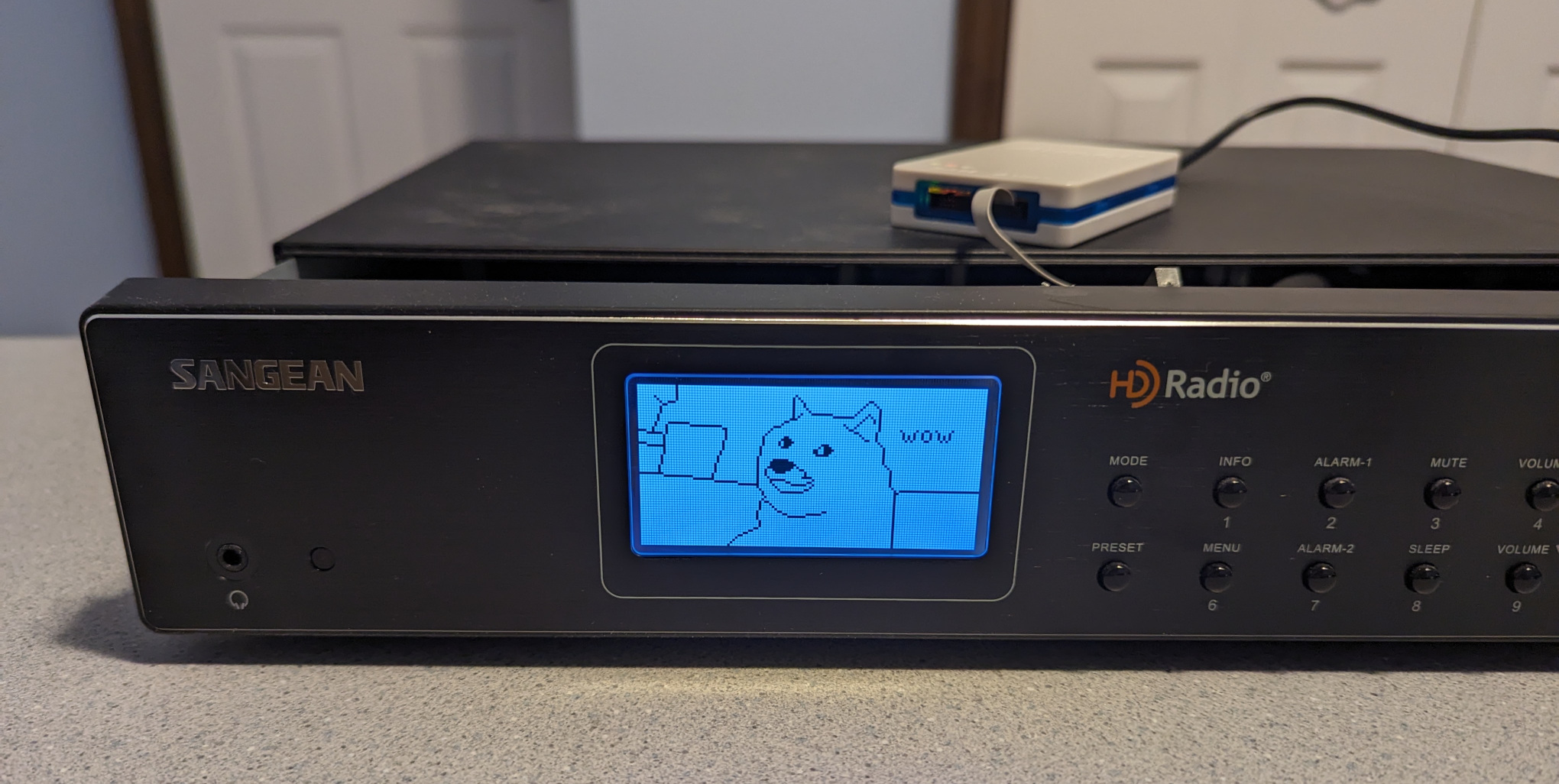
<p>Now that I was comfortable modifying the firmware, I decided to have some fun with it. Why not change the bootup logo? After digging through the firmware dump, I found the bitmap at offset 0x1ca1 and was able to decode and display it with Python:</p>

<div class="language-python highlighter-rouge"><div class="highlight"><pre class="highlight"><code><span class="kn">from</span> <span class="n">PIL</span> <span class="kn">import</span> <span class="n">Image</span>

<span class="k">with</span> <span class="nf">open</span><span class="p">(</span><span class="sh">"</span><span class="s">app_section.bin</span><span class="sh">"</span><span class="p">,</span> <span class="sh">"</span><span class="s">rb</span><span class="sh">"</span><span class="p">)</span> <span class="k">as</span> <span class="n">f</span><span class="p">:</span>
    <span class="n">data</span> <span class="o">=</span> <span class="n">f</span><span class="p">.</span><span class="nf">read</span><span class="p">()</span>

<span class="n">offset</span> <span class="o">=</span> <span class="mh">0x1ca1</span>
<span class="n">width</span><span class="p">,</span> <span class="n">height</span> <span class="o">=</span> <span class="mi">128</span><span class="p">,</span> <span class="mi">64</span>
<span class="n">len_bytes</span> <span class="o">=</span> <span class="n">width</span> <span class="o">*</span> <span class="n">height</span> <span class="o">//</span> <span class="mi">8</span>

<span class="n">image_data</span> <span class="o">=</span> <span class="n">data</span><span class="p">[</span><span class="n">offset</span><span class="p">:</span><span class="n">offset</span> <span class="o">+</span> <span class="n">len_bytes</span><span class="p">]</span>

<span class="n">img</span> <span class="o">=</span> <span class="n">Image</span><span class="p">.</span><span class="nf">new</span><span class="p">(</span><span class="sh">'</span><span class="s">1</span><span class="sh">'</span><span class="p">,</span> <span class="p">(</span><span class="n">width</span><span class="p">,</span> <span class="n">height</span><span class="p">))</span>

<span class="k">for</span> <span class="n">row</span> <span class="ow">in</span> <span class="nf">range</span><span class="p">(</span><span class="n">height</span> <span class="o">//</span> <span class="mi">8</span><span class="p">):</span>
    <span class="k">for</span> <span class="n">col</span> <span class="ow">in</span> <span class="nf">range</span><span class="p">(</span><span class="n">width</span><span class="p">):</span>
        <span class="n">pixels</span> <span class="o">=</span> <span class="n">image_data</span><span class="p">[</span><span class="n">row</span><span class="o">*</span><span class="n">width</span> <span class="o">+</span> <span class="n">col</span><span class="p">]</span>
        <span class="k">for</span> <span class="n">r</span> <span class="ow">in</span> <span class="nf">range</span><span class="p">(</span><span class="mi">8</span><span class="p">):</span>
            <span class="n">img</span><span class="p">.</span><span class="nf">putpixel</span><span class="p">((</span><span class="n">col</span><span class="p">,</span> <span class="n">row</span><span class="o">*</span><span class="mi">8</span> <span class="o">+</span> <span class="n">r</span><span class="p">),</span> <span class="p">(</span><span class="n">pixels</span> <span class="o">&gt;&gt;</span> <span class="p">(</span><span class="mi">7</span><span class="o">-</span><span class="n">r</span><span class="p">))</span> <span class="o">&amp;</span> <span class="mi">1</span><span class="p">)</span>
<span class="n">img</span><span class="p">.</span><span class="nf">show</span><span class="p">()</span>
</code></pre></div></div>

<p><img src="/images/hd-radio.png" width="256" height="128" alt="HD Radio logo" /></p>

<p>With a bit more Python, I was able to convert my own image into the correct format:</p>

<div class="language-python highlighter-rouge"><div class="highlight"><pre class="highlight"><code><span class="kn">from</span> <span class="n">PIL</span> <span class="kn">import</span> <span class="n">Image</span>

<span class="n">img</span> <span class="o">=</span> <span class="n">Image</span><span class="p">.</span><span class="nf">open</span><span class="p">(</span><span class="sh">"</span><span class="s">doge.png</span><span class="sh">"</span><span class="p">)</span>
<span class="n">pix</span> <span class="o">=</span> <span class="n">img</span><span class="p">.</span><span class="nf">load</span><span class="p">()</span>
<span class="n">width</span><span class="p">,</span> <span class="n">height</span> <span class="o">=</span> <span class="n">img</span><span class="p">.</span><span class="n">size</span>

<span class="n">image_data</span> <span class="o">=</span> <span class="p">[]</span>
<span class="k">for</span> <span class="n">row</span> <span class="ow">in</span> <span class="nf">range</span><span class="p">(</span><span class="n">height</span> <span class="o">//</span> <span class="mi">8</span><span class="p">):</span>
    <span class="k">for</span> <span class="n">col</span> <span class="ow">in</span> <span class="nf">range</span><span class="p">(</span><span class="n">width</span><span class="p">):</span>
        <span class="n">pixels</span> <span class="o">=</span> <span class="mi">0</span>
        <span class="k">for</span> <span class="n">r</span> <span class="ow">in</span> <span class="nf">range</span><span class="p">(</span><span class="mi">8</span><span class="p">):</span>
            <span class="n">pixels</span> <span class="o">|=</span> <span class="p">((</span><span class="mi">1</span> <span class="k">if</span> <span class="n">pix</span><span class="p">[</span><span class="n">col</span><span class="p">,</span> <span class="n">row</span><span class="o">*</span><span class="mi">8</span> <span class="o">+</span> <span class="n">r</span><span class="p">][</span><span class="mi">1</span><span class="p">]</span> <span class="o">==</span> <span class="mi">0</span> <span class="k">else</span> <span class="mi">0</span><span class="p">)</span> <span class="o">&lt;&lt;</span> <span class="p">(</span><span class="mi">7</span><span class="o">-</span><span class="n">r</span><span class="p">))</span>
        <span class="n">image_data</span><span class="p">.</span><span class="nf">append</span><span class="p">(</span><span class="n">pixels</span><span class="p">)</span>
<span class="n">image_data</span> <span class="o">=</span> <span class="nf">bytes</span><span class="p">(</span><span class="n">image_data</span><span class="p">)</span>
<span class="nf">print</span><span class="p">(</span><span class="n">image_data</span><span class="p">[:</span><span class="mi">1024</span><span class="p">].</span><span class="nf">hex</span><span class="p">())</span>
</code></pre></div></div>

<p>And write the bytes to flash:</p>

<div class="language-plaintext highlighter-rouge"><div class="highlight"><pre class="highlight"><code>atprogram -t atmelice -i jtag -d ATxmega192A3 write -fl -o 0x1ca1 --values fffffffffffff7fbfdfefefdfdfd03fffffffffffffffffffffffffffffffffffffffffffffffffffffffffffffffffffffffffffffffffffff0eff7fbfcfffffffffffffffffffffffffffffffffffffffffffefdfbfbfdfefffffffffffffffffffffffffffffffffffffffffffffffffffffffffffffffffffffffffffffffffffffffffffce31ffffefdfdfdfdfdfdfdfdfefefefefefefefefefefefefffffffffffffffffffffffffffffffffffffffefefefdfbfbf707f7efdfff7fbfdfdfdfdfdfdfdfdfefefefefedeeefefdebd7bf7efdfeff3ff00ffffffffffffffffffffffffffffffffffffffffffffffffffffffffffffffffffffffffffffbdbdbddede1edededee01fffffffffffffffffffffffffffffffffffffffff7807fffffffffffffffffffffffffee1dfbf7ffffff9f6e0e0f1fbfffffffffffffffffffefdfcfcfeffffffffffff7f7fbfbfdfeff7f7ffff877bfdfeffffffffff7f8ff7cff78f7fff8f77778fff7f8ff7cff78f7ffffffffffffffffffffffffffffffffffffffee11ffffffffffffffffffffffffffffffffffffffce39f7fffffffffffffffffffffffffe01ffffffef8f0f0f0f0f0f0f8f8fdfeffffffffff3f1fdfdf1f1f3f7fffffffffffffffffffffffffffffffffffff03fdfeffffffffffffffffffffffffffffffffffffffffffffffffffffffffffffffffffffdfdfdfdfdfdfdf1fdfefefefefefefefefefefeff7f7f7f7f7f7f7c73bfbfbfbfbfbfbfbfbfdfdfdfdfdfdfd00ffff1feff375363737377b7bfdfdfd7d6d8debeaf5ffffffffffffffffffffffffffffffffffffffffffffffffffffffff01feffffffffffffffffffffffffffffffffffffffffffffffffffffffffffffffffffffffffffffffffffffffffffffffffffffffffffffffffffffffffffffffffffffffffffffffffffffffffff7897ebfbfdfeff7fbfbfbfbfbfbfbfbfbf7f7fffffffffffffffffffffffffffffffffffffffffffffffffffffffffffffffff00bf7f7f7f7f7f7f7f7f7f7f7f7f7f7f7f7f7f7f7f7f7f7f7f7f7f7f7f7f7f7fffffffffffffffffffffffffffffffffffffffffffffffffffffffffffffffffffffffffffffffffffffffff8778ffffffffff7fbfbfdfdfefefefefefefefdfdfdfdfdfdfbfbfffffffffffffffffffffffffffffffffffffffffffffffffff00fffffffffffffffffffffffffffffffffffffffffffffffffffffffffffffffffffffffffffffffffffffffffffffffffffffffffffffffffffffffffffffffffefdfbf7efefdfdfbfbf7f7fffffffffffffffffffffffffffffffffffffffffffffffffffffffffffffffffffffffffffffffffffffffffffffffffffffff00ffffffffffffffffffffffffffffffffffffffffffffffffffffffffffffff
</code></pre></div></div>

<p>Success!</p>

<p><img src="/images/sangean-doge.jpg" alt="Sangean HDT-20 bootup screen replaced with a Doge meme" /></p>]]></content><author><name>Clayton Smith</name></author><summary type="html"><![CDATA[I’ve been interested in HD Radio for many years, and maintain open-source software for receiving and transmitting HD Radio signals. To verify that the transmit software (gr-nrsc5) is working correctly, I use a Sangean HDT-20 tuner to receive the generated signal. The HD Radio standard (NRSC-5) defines various “service modes,” which allow broadcasters to select how much bandwidth they would like to assign to their digital signal, and how that bandwidth should divided up. The standard defines many modes, but in practice almost all FM stations are using either: MP1, which has a total throughput of 99 kbit/s; or MP3, which increases the throughput to 124 kbit/s by widening the digital signal slightly. WWWT-FM recently began using MP11, which prompted me to look into this mode more deeply. It builds on top of MP3 by widening the digital signal further, increasing throughput to 149 kbit/s. Someone was kind enough to send me a recording of the WWWT-FM signal, but my trusty Sangean HDT-20 could not decode the additional subchannel. Nor could any of the other receivers we tried. A test signal generated by gr-nrsc5 didn’t work either, but I couldn’t be certain whether its MP11 implementation was correct. After searching the web, I found a possible explanation in the Si468x Programming Guide: Property 0x9A00. HD_SERVICE_MODE_CONTROL_MP11_ENABLE This property Enables MP11 mode support. If MP11 support is disabled using this property the receiver will fall back to MP3 mode of operation when tuned to a station that is transmitting the MP11 subcarriers. Default: 0x0000 Most HD Radio receivers use Si468x demodulator chips, and the Sangean HDT-20 is no exception. For reasons unknown, the chip does not decode the extra subchannel unless the receiver specifically opts in by switching on the HD_SERVICE_MODE_CONTROL_MP11_ENABLE property. MP11 is the only service mode that gets this special treatment, so I can only speculate that perhaps a problem with an implementation of MP11 was discovered after it was standardized. I wondered whether it might be possible to coax the HDT-20 into receiving MP11 by switching on the HD_SERVICE_MODE_CONTROL_MP11_ENABLE property somehow. I opened up the receiver and found that the interesting bits were hidden inside an RF shield, but there was also a 10-pin header that looked suspiciously like a JTAG debug port. I didn’t know much about JTAG, so I read over wrongbaud’s JTAG guide and installed JTAGenum on a Raspberry Pi to determine the JTAG pinout. It worked, and I was able to fetch the ID code register: 0x6974403f. This told me the manufacturer (0x01f = Atmel) and part number (0x9744). I made a few attempts to go further, but it became apparent that things would be difficult without using Atmel’s debugging hardware &amp; software. So I bought an Atmel-ICE and installed Microchip Studio on a Windows machine. I looked through Microchip Studio’s device definition files, and found that part number 0x9744 corresponds to the ATxmega192A3 and ATxmega192A3U microcontrollers. With that information in hand, I was able to probe the device and fetch its memory map: C:\Users\Clayton\Documents&gt;atprogram -t atmelice -i jtag -d ATxmega192A3 info Firmware check OK Tool atmelice has firmware version: 01.00 Target voltage: 3.20 V Device information: Name: ATxmega192A3 JtagId: 0x6974403f Revision: G CPU arch.: AVR8_XMEGA Signature: 0x1e9744 Memory Information: Address Space StartAddress Size prog 0x0 0x32000 APP_SECTION 0x0 0x30000 APPTABLE_SECTION 0x2e000 0x2000 BOOT_SECTION 0x30000 0x2000 data 0x0 0x6000 IO 0x0 0x1000 MAPPED_EEPROM 0x1000 0x800 INTERNAL_SRAM 0x2000 0x4000 eeprom 0x0 0x800 signatures 0x0 0x3 fuses 0x0 0x6 lockbits 0x0 0x1 user_signatures 0x0 0x200 prod_signatures 0x0 0x34 FUSEBYTE5 (0b11100101 &lt;-&gt; 0xe5): BODACT 0x2 EESAVE 0 BODLEVEL 0x5 FUSEBYTE4 (0b11110010 &lt;-&gt; 0xf2): RSTDISBL 1 STARTUPTIME 0x0 WDLOCK 1 JTAGEN 0 FUSEBYTE2 (0b11111110 &lt;-&gt; 0xfe): BOOTRST 1 BODPD 0x2 FUSEBYTE1 (0b00000000 &lt;-&gt; 0x00): WDWPER 0x0 WDPER 0x0 FUSEBYTE0 (0b11111111 &lt;-&gt; 0xff): JTAGUSERID 0xff LOCKBITS (0b11111111 &lt;-&gt; 0xff): BLBB 0x3 BLBA 0x3 BLBAT 0x3 LB 0x3 And then extract the firmware: C:\Users\Clayton\Documents&gt;atprogram -t atmelice -i jtag -d ATxmega192A3 read -fl -o 0x0 -s 0x30000 --format bin -f app_section.bin Firmware check OK Output written to app_section.bin Back on my Linux machine, I was able to convert the firmware dump to ELF and disassemble it: avr-objcopy -I binary -O elf32-avr app_section.bin app_section.elf avr-objdump -D app_section.elf &gt; app_section.asm Since the Si468x Programming Guide has a list of property numbers, I decided to pick a couple (FM_SEEK_BAND_BOTTOM = 0x3100, and FM_SEEK_BAND_TOP = 0x3101) and see whether I could find those numbers in the firmware. I eventually found this interesting code fragment: 1bfa8: 60 91 ea 3b lds r22, 0x3BEA 1bfac: 70 91 eb 3b lds r23, 0x3BEB 1bfb0: 80 e0 ldi r24, 0x00 1bfb2: 91 e3 ldi r25, 0x31 1bfb4: 0e 94 c5 88 call 0x1118a 1bfb8: 60 91 e6 3b lds r22, 0x3BE6 1bfbc: 70 91 e7 3b lds r23, 0x3BE7 1bfc0: 81 e0 ldi r24, 0x01 1bfc2: 91 e3 ldi r25, 0x31 1bfc4: 0e 94 c5 88 call 0x1118a 1bfc8: 60 91 e2 3b lds r22, 0x3BE2 1bfcc: 70 91 e3 3b lds r23, 0x3BE3 1bfd0: 82 e0 ldi r24, 0x02 1bfd2: 91 e3 ldi r25, 0x31 1bfd4: 0e 94 c5 88 call 0x1118a 1bfd8: 60 e0 ldi r22, 0x00 1bfda: 70 e0 ldi r23, 0x00 1bfdc: 81 e0 ldi r24, 0x01 1bfde: 95 e3 ldi r25, 0x35 1bfe0: 0e 94 c5 88 call 0x1118a It appears that the function at offset 0x1118a sets a property on the Si468x chip, taking the property number from registers r25 &amp; r24, and the value from registers r23 &amp; r22. So this code sets not only FM_SEEK_BAND_BOTTOM and FM_SEEK_BAND_TOP, but also FM_SEEK_FREQUENCY_SPACING (property 0x3102) and FM_SOFTMUTE_SNR_ATTENUATION (property 0x3501). Assuming this code runs at boot, it should be possible to modify the instructions that set FM_SOFTMUTE_SNR_ATTENUATION to instead set HD_SERVICE_MODE_CONTROL_MP11_ENABLE (0x9A00) to 0x0001. The modified instructions are: 1bfd8: 61 e0 ldi r22, 0x01 1bfda: 70 e0 ldi r23, 0x00 1bfdc: 80 e0 ldi r24, 0x00 1bfde: 9a e9 ldi r25, 0x9A On my Windows machine, I wrote the new instructions into the firmware: C:\Users\Clayton\Documents&gt;atprogram -t atmelice -i jtag -d ATxmega192A3 write -fl -o 0x1bfd8 --values 61e070e080e09ae9 Firmware check OK Write completed successfully. It worked! After rebooting the HDT-20, I was finally able to receive an MP11 signal. While this patch worked, I was worried that failing to set the FM_SOFTMUTE_SNR_ATTENUATION property might cause trouble, so I instead overwrote that code with a jump to an unused memory location: 1bfd8: 0d 94 00 78 jmp 0x2f000 At that location, I placed code to set both FM_SOFTMUTE_SNR_ATTENUATION and HD_SERVICE_MODE_CONTROL_MP11_ENABLE, then jump back: 2f000: 60 e0 ldi r22, 0x00 2f002: 70 e0 ldi r23, 0x00 2f004: 81 e0 ldi r24, 0x01 2f006: 95 e3 ldi r25, 0x35 2f008: 0e 94 c5 88 call 0x1118a 2f00c: 61 e0 ldi 22, 0x01 2f00e: 70 e0 ldi r23, 0x00 2f010: 80 e0 ldi r24, 0x00 2f012: 9a e9 ldi r25, 0x9A 2f014: 0e 94 c5 88 call 0x1118a 2f018: 0c 94 f2 df jmp 0x1bfe4 To write the patched code, I ran: atprogram -t atmelice -i jtag -d ATxmega192A3 write -fl -o 0x1bfd8 --values 0d940078 atprogram -t atmelice -i jtag -d ATxmega192A3 write -fl -o 0x2f000 --values 60e070e081e095e30e94c58861e070e080e09ae90e94c5880c94f2df If needed, the original code could be restored like so: atprogram -t atmelice -i jtag -d ATxmega192A3 write -fl -o 0x1bfd8 --values 60e070e0 atprogram -t atmelice -i jtag -d ATxmega192A3 write -fl -o 0x2f000 --values ffffffffffffffffffffffffffffffffffffffffffffffffffffffff Now that I was comfortable modifying the firmware, I decided to have some fun with it. Why not change the bootup logo? After digging through the firmware dump, I found the bitmap at offset 0x1ca1 and was able to decode and display it with Python: from PIL import Image with open("app_section.bin", "rb") as f: data = f.read() offset = 0x1ca1 width, height = 128, 64 len_bytes = width * height // 8 image_data = data[offset:offset + len_bytes] img = Image.new('1', (width, height)) for row in range(height // 8): for col in range(width): pixels = image_data[row*width + col] for r in range(8): img.putpixel((col, row*8 + r), (pixels &gt;&gt; (7-r)) &amp; 1) img.show() With a bit more Python, I was able to convert my own image into the correct format: from PIL import Image img = Image.open("doge.png") pix = img.load() width, height = img.size image_data = [] for row in range(height // 8): for col in range(width): pixels = 0 for r in range(8): pixels |= ((1 if pix[col, row*8 + r][1] == 0 else 0) &lt;&lt; (7-r)) image_data.append(pixels) image_data = bytes(image_data) print(image_data[:1024].hex()) And write the bytes to flash: atprogram -t atmelice -i jtag -d ATxmega192A3 write -fl -o 0x1ca1 --values fffffffffffff7fbfdfefefdfdfd03fffffffffffffffffffffffffffffffffffffffffffffffffffffffffffffffffffffffffffffffffffff0eff7fbfcfffffffffffffffffffffffffffffffffffffffffffefdfbfbfdfefffffffffffffffffffffffffffffffffffffffffffffffffffffffffffffffffffffffffffffffffffffffffffce31ffffefdfdfdfdfdfdfdfdfefefefefefefefefefefefefffffffffffffffffffffffffffffffffffffffefefefdfbfbf707f7efdfff7fbfdfdfdfdfdfdfdfdfefefefefedeeefefdebd7bf7efdfeff3ff00ffffffffffffffffffffffffffffffffffffffffffffffffffffffffffffffffffffffffffffbdbdbddede1edededee01fffffffffffffffffffffffffffffffffffffffff7807fffffffffffffffffffffffffee1dfbf7ffffff9f6e0e0f1fbfffffffffffffffffffefdfcfcfeffffffffffff7f7fbfbfdfeff7f7ffff877bfdfeffffffffff7f8ff7cff78f7fff8f77778fff7f8ff7cff78f7ffffffffffffffffffffffffffffffffffffffee11ffffffffffffffffffffffffffffffffffffffce39f7fffffffffffffffffffffffffe01ffffffef8f0f0f0f0f0f0f8f8fdfeffffffffff3f1fdfdf1f1f3f7fffffffffffffffffffffffffffffffffffff03fdfeffffffffffffffffffffffffffffffffffffffffffffffffffffffffffffffffffffdfdfdfdfdfdfdf1fdfefefefefefefefefefefeff7f7f7f7f7f7f7c73bfbfbfbfbfbfbfbfbfdfdfdfdfdfdfd00ffff1feff375363737377b7bfdfdfd7d6d8debeaf5ffffffffffffffffffffffffffffffffffffffffffffffffffffffff01feffffffffffffffffffffffffffffffffffffffffffffffffffffffffffffffffffffffffffffffffffffffffffffffffffffffffffffffffffffffffffffffffffffffffffffffffffffffffff7897ebfbfdfeff7fbfbfbfbfbfbfbfbfbf7f7fffffffffffffffffffffffffffffffffffffffffffffffffffffffffffffffff00bf7f7f7f7f7f7f7f7f7f7f7f7f7f7f7f7f7f7f7f7f7f7f7f7f7f7f7f7f7f7fffffffffffffffffffffffffffffffffffffffffffffffffffffffffffffffffffffffffffffffffffffffff8778ffffffffff7fbfbfdfdfefefefefefefefdfdfdfdfdfdfbfbfffffffffffffffffffffffffffffffffffffffffffffffffff00fffffffffffffffffffffffffffffffffffffffffffffffffffffffffffffffffffffffffffffffffffffffffffffffffffffffffffffffffffffffffffffffffefdfbf7efefdfdfbfbf7f7fffffffffffffffffffffffffffffffffffffffffffffffffffffffffffffffffffffffffffffffffffffffffffffffffffffff00ffffffffffffffffffffffffffffffffffffffffffffffffffffffffffffff Success!]]></summary></entry><entry><title type="html">Trolling CTF players (again) with gr-paint</title><link href="https://irrational.net/2023/11/03/trolling-ctf-players-again-with-gr-paint/" rel="alternate" type="text/html" title="Trolling CTF players (again) with gr-paint" /><published>2023-11-03T19:42:00+00:00</published><updated>2023-11-03T19:42:00+00:00</updated><id>https://irrational.net/2023/11/03/trolling-ctf-players-again-with-gr-paint</id><content type="html" xml:base="https://irrational.net/2023/11/03/trolling-ctf-players-again-with-gr-paint/"><![CDATA[<p>Last week I headed back to Ottawa for the <a href="https://bsidesottawa.ca/">BSides Ottawa</a> conference &amp; CTF. As usual, I put together a series of radio challenges, and <a href="https://www.xanthus.io/">Xanthus Security</a> generously provided each team with an <a href="https://www.nooelec.com/store/sdr/sdr-receivers/nesdr/nesdr-mini-2-plus.html">RTL-SDR dongle</a> that they could use to receive the mysterious signals floating around the conference area.</p>

<p>CTF players were asked to imagine they were employees of “Hackers 4 Cash,” a consulting firm hired by pickle farm “Ye Olde Pickles” to hack their competitor, “CyberPickle.” Not surprisingly, CyberPickle relied heavily on radio to automate their operations.</p>

<p>The first radio challenge was called “Wide Load,” and players were given the following challenge:</p>

<blockquote>
  <p>To keep their communications private, CyberPickle is testing out a new wideband communication system on the 902-928 MHz ISM band. Is it possible to intercept the message?</p>
</blockquote>

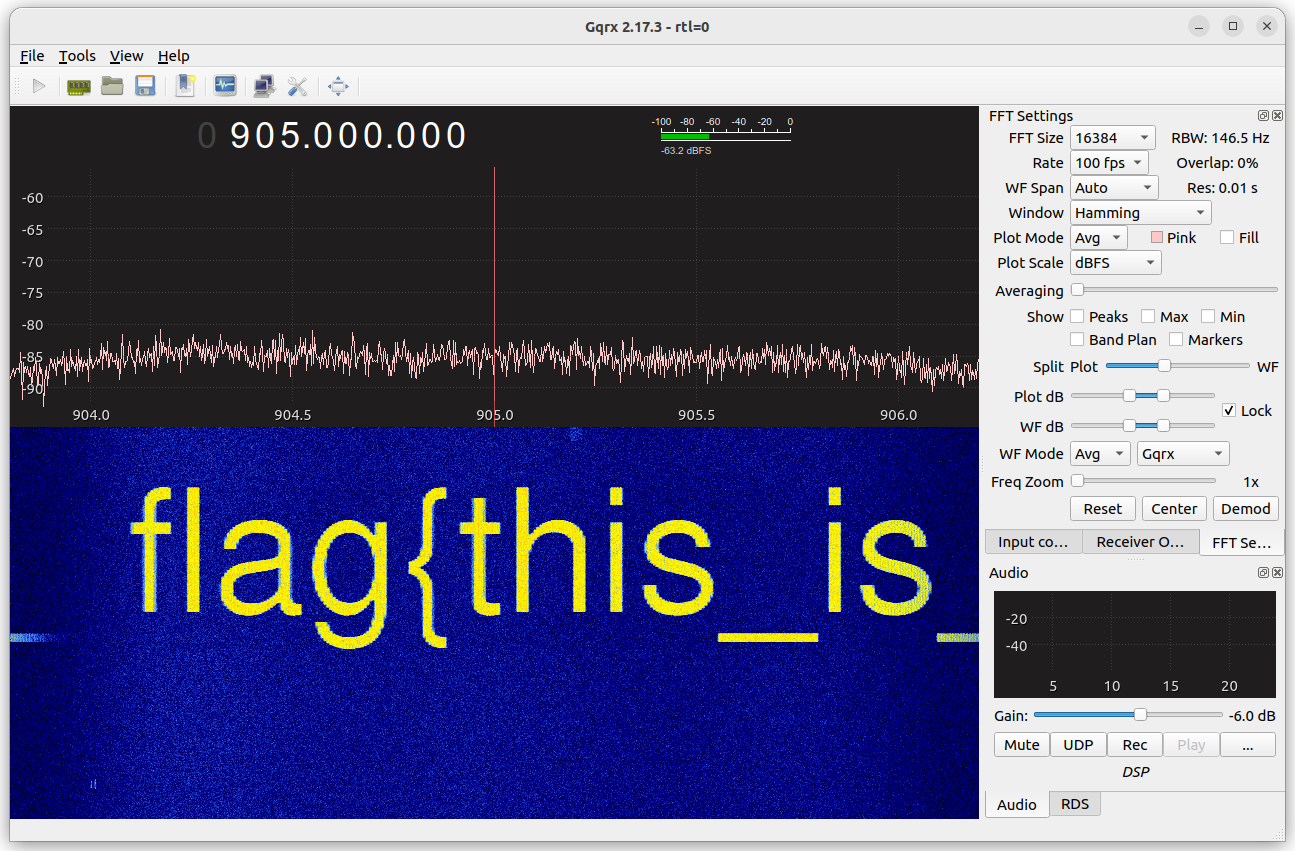
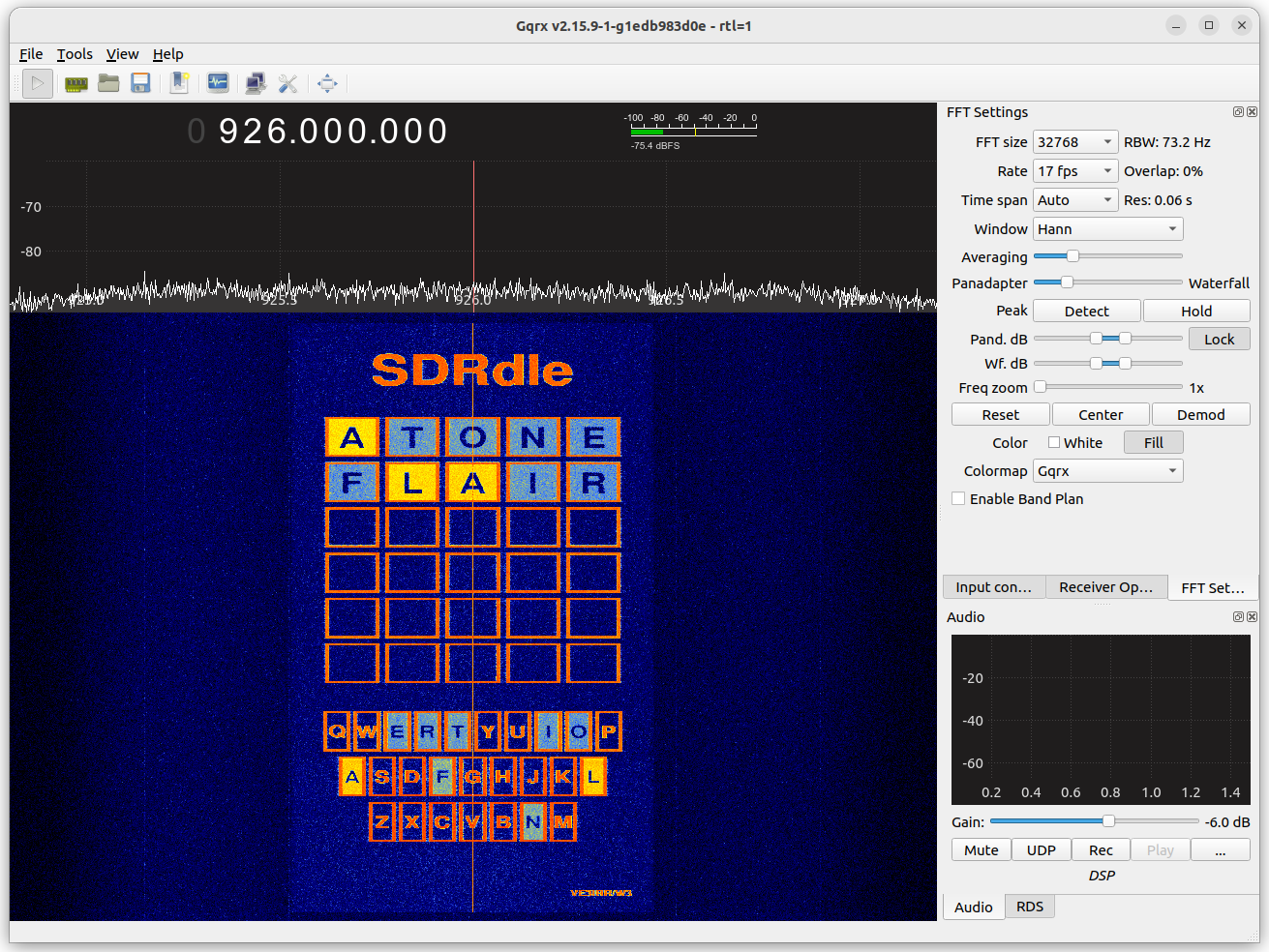
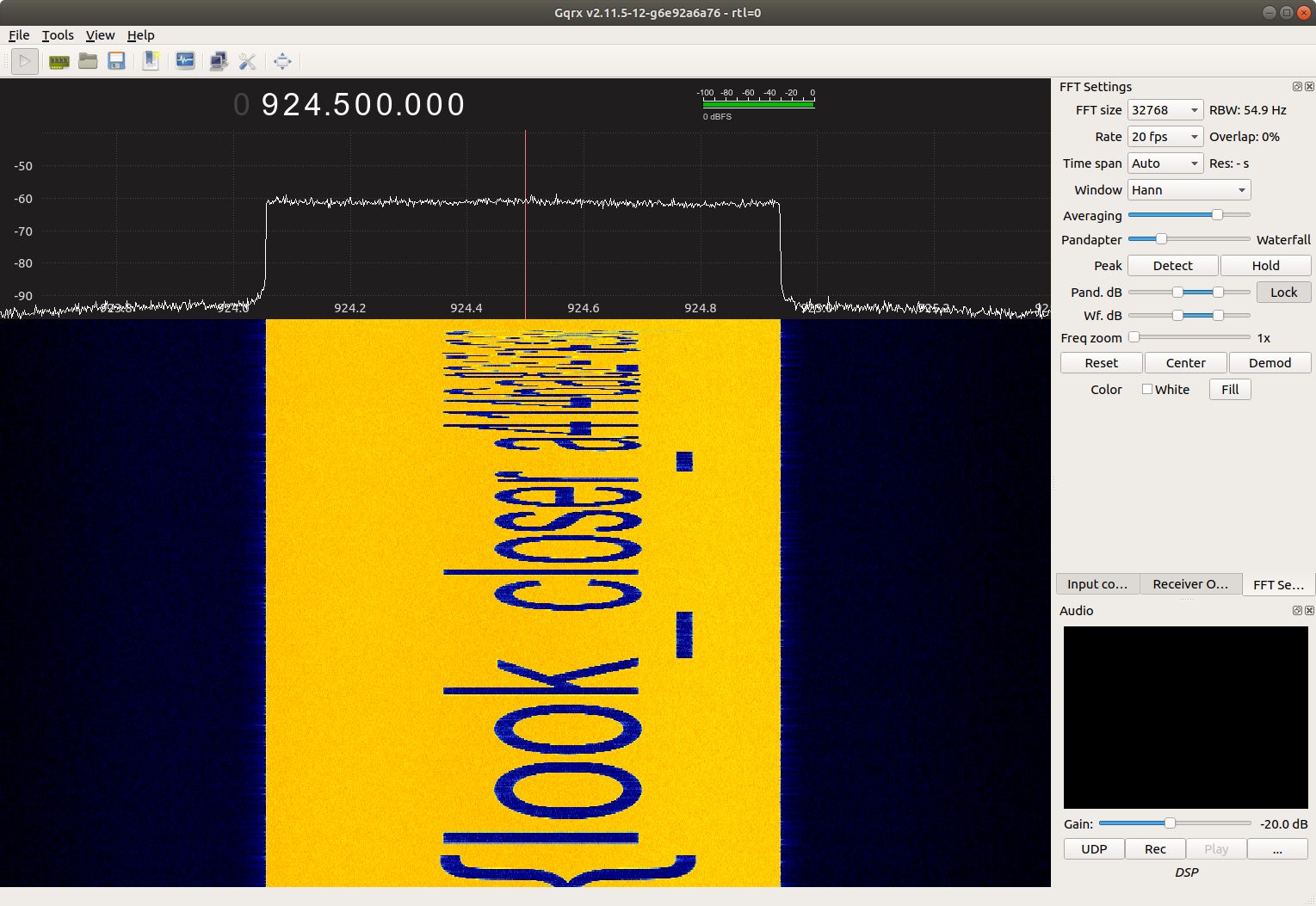
<p>When tuning to the low end of the band, around 905 MHz, the following signal appeared in the waterfall once every 45 seconds:</p>

<p><img src="/images/wide-load-rtl-1.png" alt="Screenshot of Gqrx, showing &quot;flag{this_is_&quot; in the waterfall" /></p>

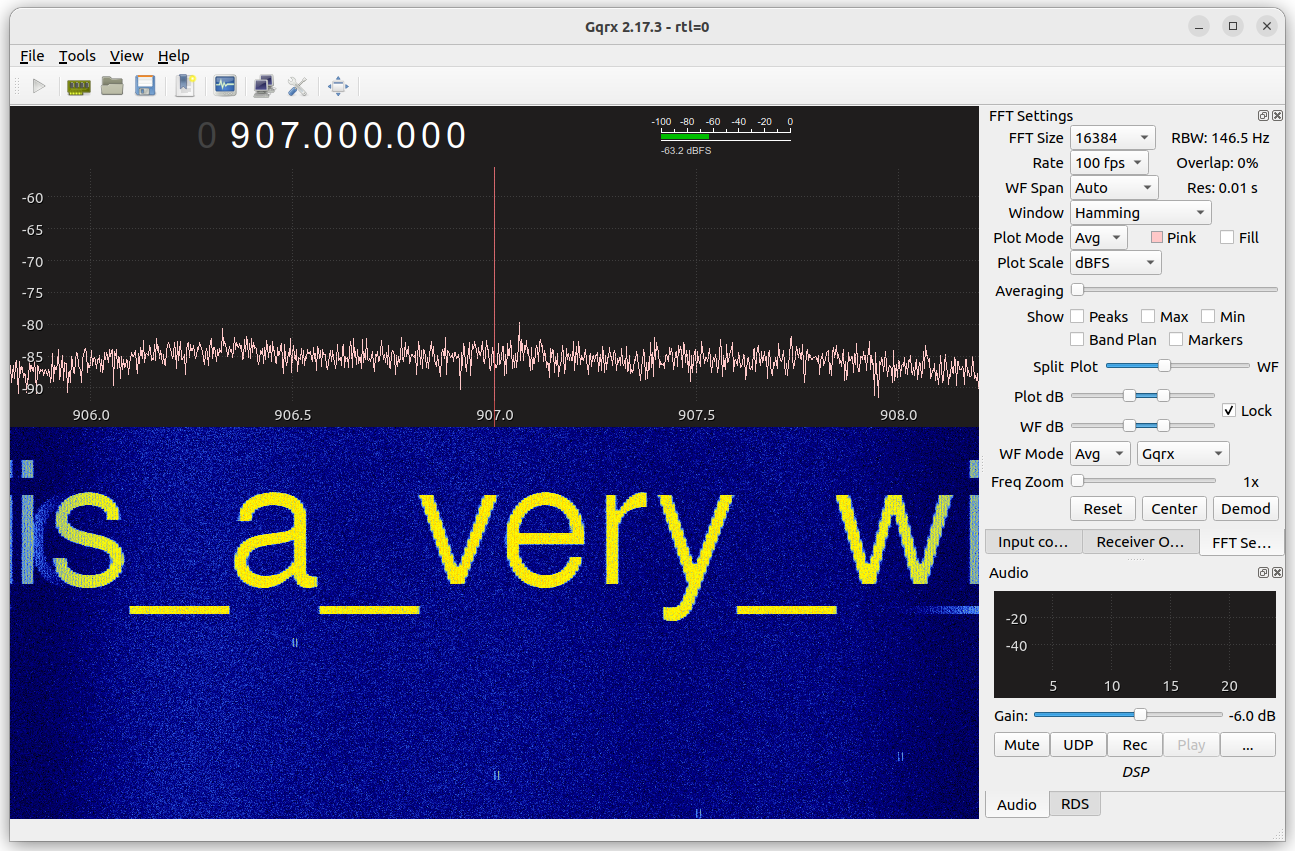
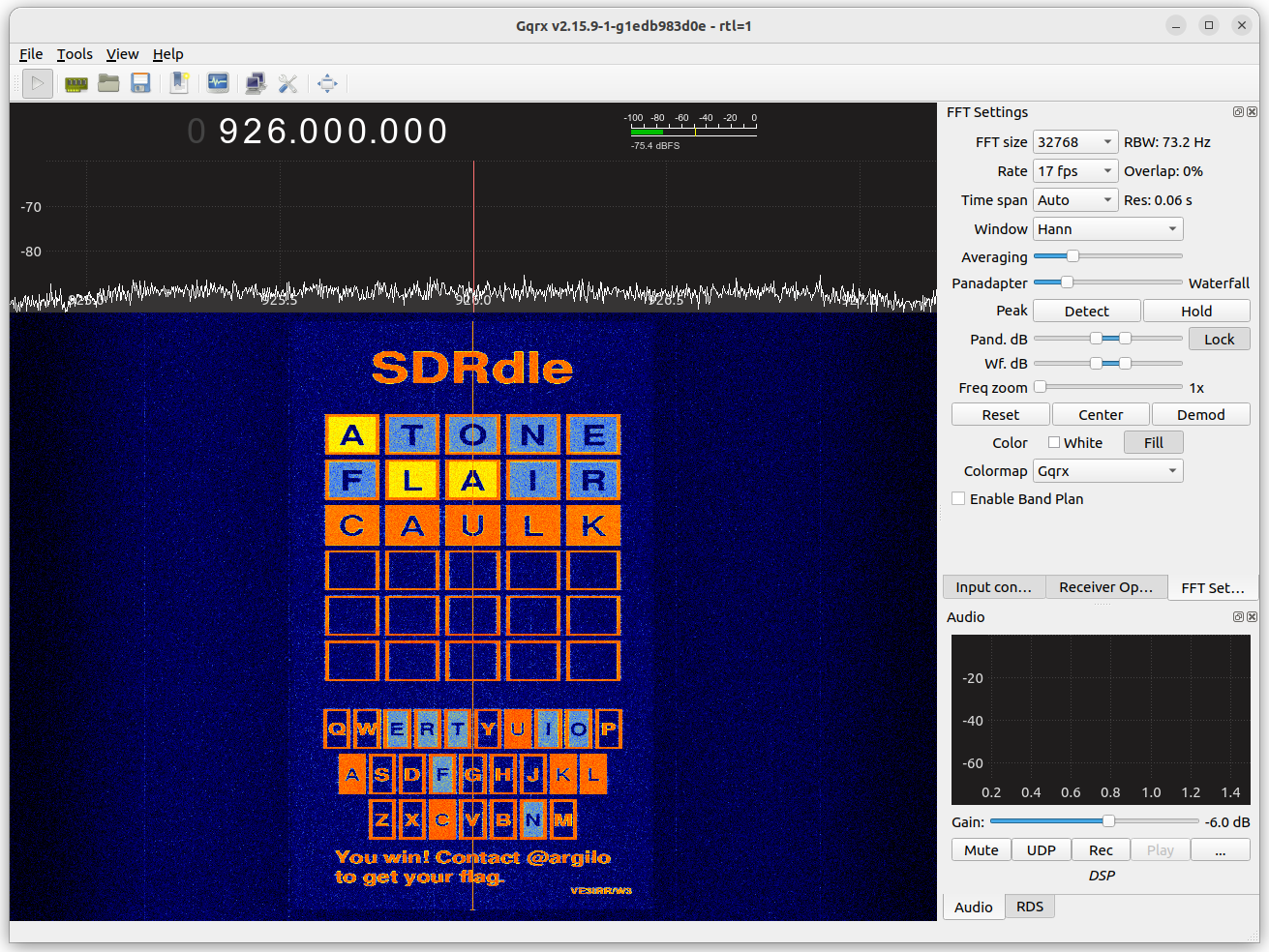
<p>Clearly that’s the start of a flag, but we need to tune higher to see more. After tuning to 907 MHz and patiently waiting, the next piece of the flag could be seen:</p>

<p><img src="/images/wide-load-rtl-2.png" alt="Screenshot of Gqrx, showing &quot;is_a_very_wi&quot; in the waterfall" /></p>

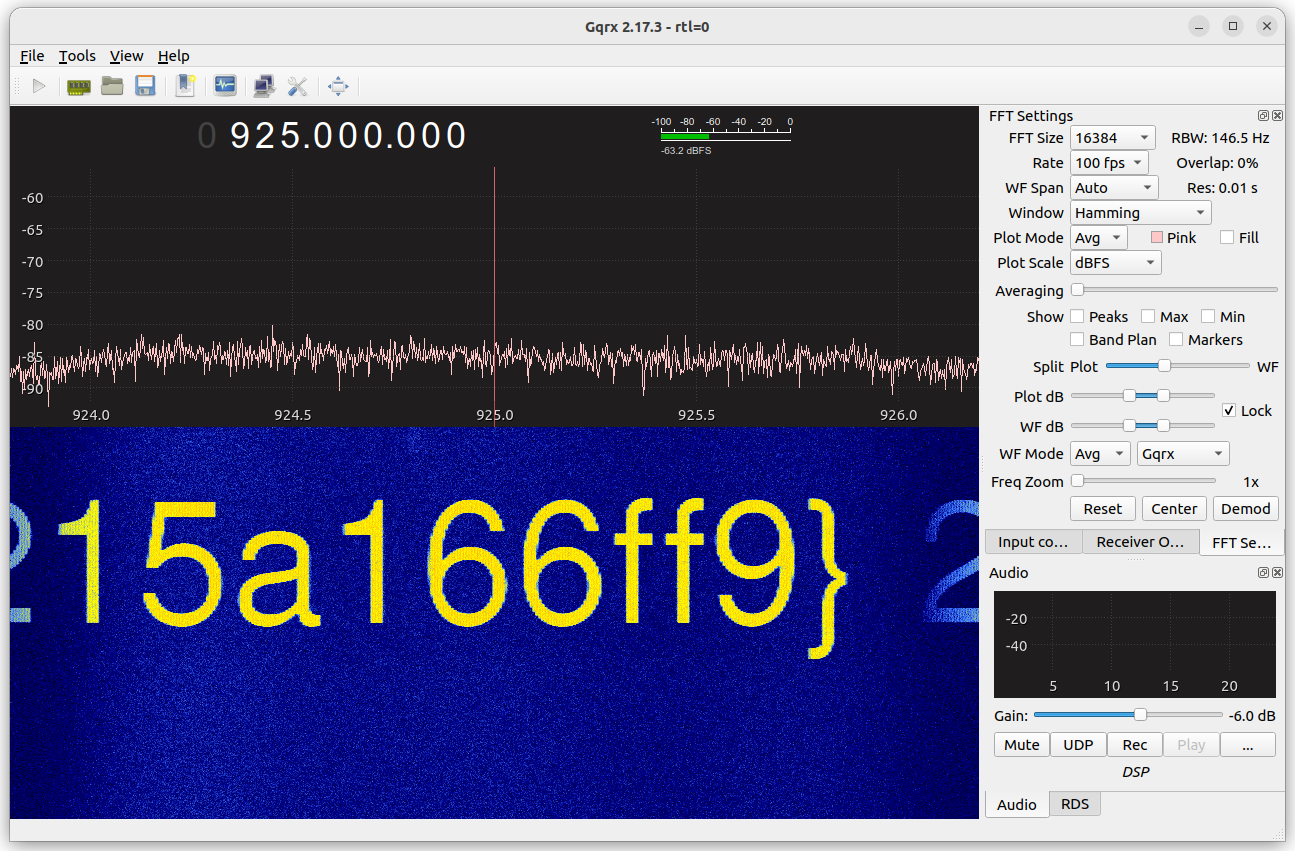
<p>After repeating this process another nine times or so, players would finally reach the end of the flag:</p>

<p><img src="/images/wide-load-rtl-3.png" alt="Screenshot of Gqrx, showing &quot;15a166ff9}&quot; in the waterfall" /></p>

<p>Many players asked me whether it’s possible to “zoom out” and see more of the radio spectrum at once. Unfortunately, it’s not possible to do that directly because the RTL-SDR is limited to a sample rate of approximately 2.4 million samples per second, which means that it’s only possible to see a frequency span of 2.4 MHz at a time. (In practice, the usable bandwidth is a bit lower than that due to <a href="https://en.wikipedia.org/wiki/Aliasing">aliasing</a>; if you look closely at the screenshots above, you’ll see that signals near the edges of the display begin fading out and then “wrap around” to the opposite edge due to the imperfect anti-aliasing filter in the receiver.)</p>

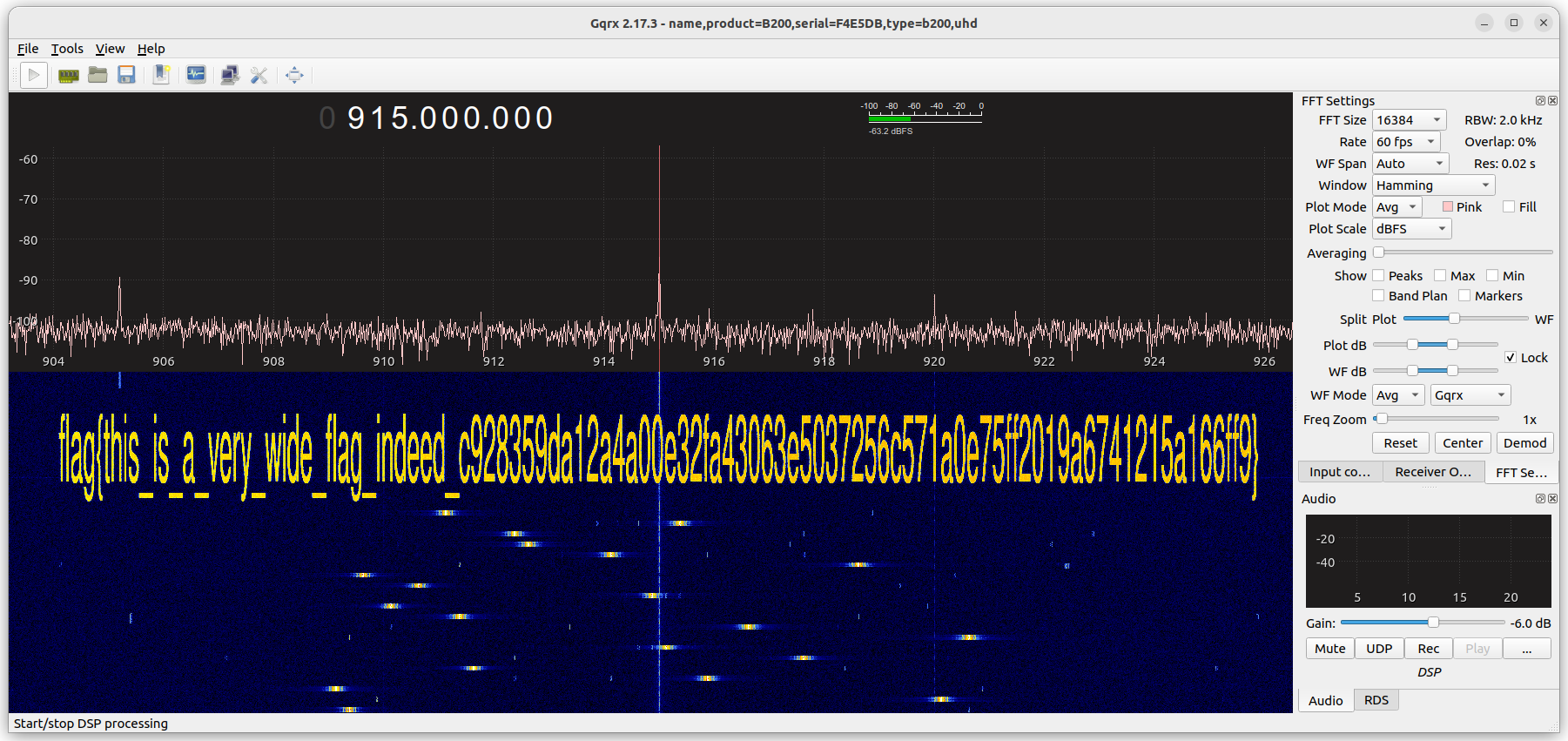
<p>More expensive receivers can operate at much higher sample rates. For instance, the USRP B200 can receive up to 56 MHz at once, allowing the entire 902-928 MHz ISM band to be recorded:</p>

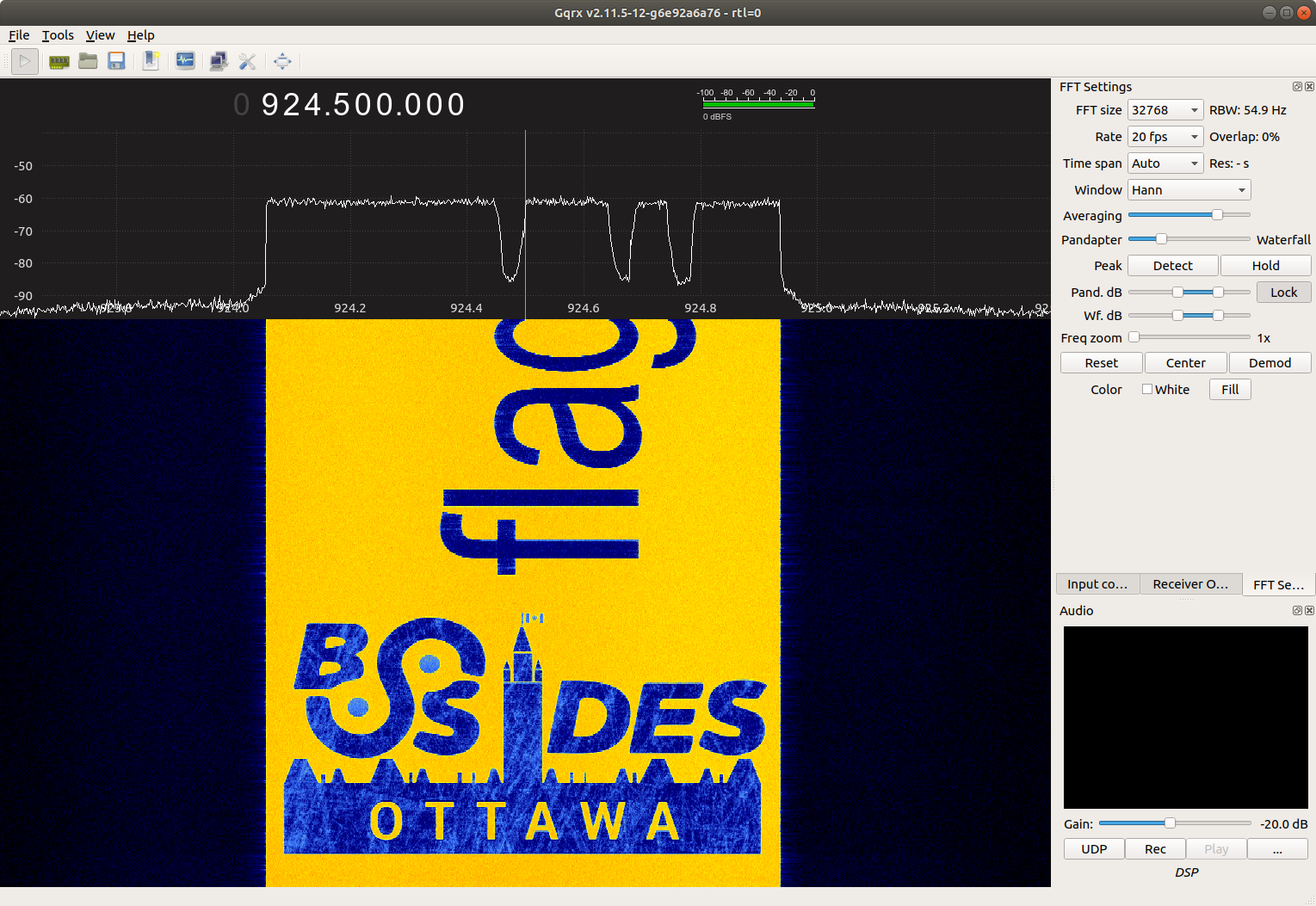
<p><img src="/images/wide-load-usrp.png" alt="Screenshot of Gqrx, showing &quot;flag{this_is_a_very_wide_flag_indeed_c928359da12a4a00e32fa43063e5037256c571a0e75ff2019a6741215a166ff9}&quot; in the waterfall" /></p>

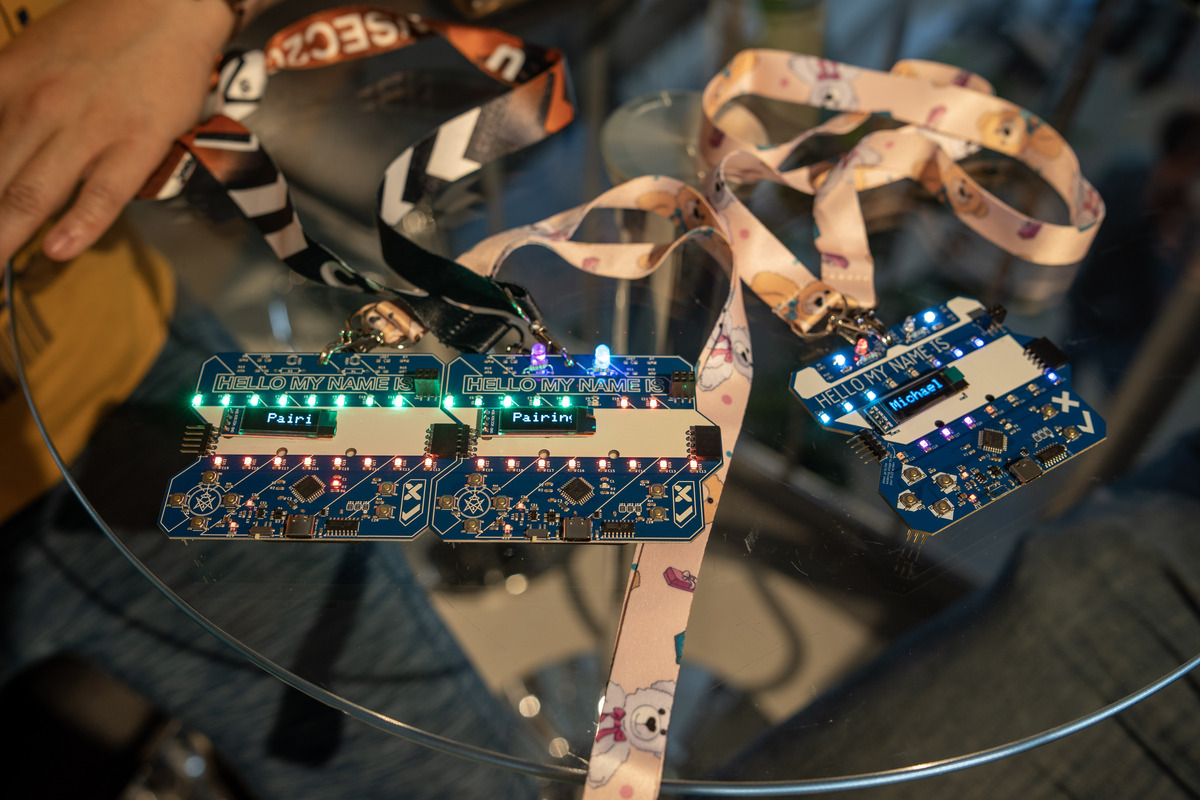
<p>To create this challenge, I used ImageMagick to create a large PNG file containing the flag, and then painted that onto the radio spectrum using <a href="https://github.com/drmpeg/gr-paint">gr-paint</a>. I’ve published the <a href="https://github.com/argilo/bso2023">source code for all my challenges</a>, and the pieces used to generate the “Wide Load” challenge can be found <a href="https://github.com/argilo/bso2023/blob/847fbb99876cd832d7a4e1c52e742ecb3f6cf501/gen_all.sh#L21-L31">here</a> and <a href="https://github.com/argilo/bso2023/blob/main/paint/paint_wide.grc">here</a>.</p>]]></content><author><name>Clayton Smith</name></author><summary type="html"><![CDATA[Last week I headed back to Ottawa for the BSides Ottawa conference &amp; CTF. As usual, I put together a series of radio challenges, and Xanthus Security generously provided each team with an RTL-SDR dongle that they could use to receive the mysterious signals floating around the conference area. CTF players were asked to imagine they were employees of “Hackers 4 Cash,” a consulting firm hired by pickle farm “Ye Olde Pickles” to hack their competitor, “CyberPickle.” Not surprisingly, CyberPickle relied heavily on radio to automate their operations. The first radio challenge was called “Wide Load,” and players were given the following challenge: To keep their communications private, CyberPickle is testing out a new wideband communication system on the 902-928 MHz ISM band. Is it possible to intercept the message? When tuning to the low end of the band, around 905 MHz, the following signal appeared in the waterfall once every 45 seconds: Clearly that’s the start of a flag, but we need to tune higher to see more. After tuning to 907 MHz and patiently waiting, the next piece of the flag could be seen: After repeating this process another nine times or so, players would finally reach the end of the flag: Many players asked me whether it’s possible to “zoom out” and see more of the radio spectrum at once. Unfortunately, it’s not possible to do that directly because the RTL-SDR is limited to a sample rate of approximately 2.4 million samples per second, which means that it’s only possible to see a frequency span of 2.4 MHz at a time. (In practice, the usable bandwidth is a bit lower than that due to aliasing; if you look closely at the screenshots above, you’ll see that signals near the edges of the display begin fading out and then “wrap around” to the opposite edge due to the imperfect anti-aliasing filter in the receiver.) More expensive receivers can operate at much higher sample rates. For instance, the USRP B200 can receive up to 56 MHz at once, allowing the entire 902-928 MHz ISM band to be recorded: To create this challenge, I used ImageMagick to create a large PNG file containing the flag, and then painted that onto the radio spectrum using gr-paint. I’ve published the source code for all my challenges, and the pieces used to generate the “Wide Load” challenge can be found here and here.]]></summary></entry><entry><title type="html">Inverting the Raspberry Pi Debug Probe’s UART pins</title><link href="https://irrational.net/2023/05/26/inverting-raspberry-pi-debug-probe-uart/" rel="alternate" type="text/html" title="Inverting the Raspberry Pi Debug Probe’s UART pins" /><published>2023-05-26T04:01:12+00:00</published><updated>2023-05-26T04:01:12+00:00</updated><id>https://irrational.net/2023/05/26/inverting-raspberry-pi-debug-probe-uart</id><content type="html" xml:base="https://irrational.net/2023/05/26/inverting-raspberry-pi-debug-probe-uart/"><![CDATA[<p>Last week I attended the <a href="https://nsec.io/">NorthSec</a> conference &amp; CTF in Montreal. It was a great event, and I had a lot of fun! This year’s conference badge included a neat game where attendees could plug their badges together to earn points and unlock additional LED blinking patterns:</p>

<p><img src="/images/northsec-2023-badge.jpg" alt="NorthSec 2023 electronic badges" />
<em><a href="https://lightroom.adobe.com/shares/2cf9b72f6f514b85b9ecf0df02bbd985/albums/fd4d11962be74f7eaab836fafe3352c0/assets/e3f41ef1b8e64c4aa3372c474471af63">Photo</a> by <a href="https://spacebar.ca/">Simon Carpentier</a> is licensed under <a href="https://creativecommons.org/licenses/by-nc/4.0/">CC BY-NC 4.0</a></em></p>

<p>I wanted to reverse engineer the badge-to-badge communication protocol, and soon found out that it was asynchronous serial at 38400 baud, but with inverted polarity. While my Saleae logic analyzer happily decoded the inverted signal, my <a href="https://www.raspberrypi.com/products/debug-probe/">Raspberry Pi Debug Probe</a> could not. I worked around the problem by building a couple inverters (one for transmit, one for receive) on a breadboard, and putting them between the badge and the Debug Probe. This worked, but it was cumbersome enough that I wanted to find a better solution.</p>

<p>After searching the web and digging through datasheets, I learned that the RP2040 chip’s GPIO pins can be inverted by setting GPIO control registers (specifically, the <code class="language-plaintext highlighter-rouge">INOVER</code> and <code class="language-plaintext highlighter-rouge">OUTOVER</code> fields in the <code class="language-plaintext highlighter-rouge">GPIO*_CTRL</code> registers). The <a href="https://www.raspberrypi.com/documentation/pico-sdk/hardware.html#rpip822202dd157864f2ab6e"><code class="language-plaintext highlighter-rouge">gpio_set_outover</code></a> and <a href="https://www.raspberrypi.com/documentation/pico-sdk/hardware.html#rpip7b7f80d4ec51606be1f2"><code class="language-plaintext highlighter-rouge">gpio_set_inover</code></a> functions in the Raspberry Pi Pico SDK provide a convenient way to set these registers. It only took <a href="https://github.com/argilo/picoprobe/commit/50affa6517e53f5299deb69cce0715d4c784c45c">a couple lines of code</a> to invert the UART pins in the Debug Probe firmware.</p>

<p>In case you’d like to try this out on your own Debug Probe, I’ve posted the <a href="https://github.com/argilo/picoprobe/releases/tag/invert-uart-v1">compiled firmware</a> on GitHub.</p>]]></content><author><name>Clayton Smith</name></author><summary type="html"><![CDATA[Last week I attended the NorthSec conference &amp; CTF in Montreal. It was a great event, and I had a lot of fun! This year’s conference badge included a neat game where attendees could plug their badges together to earn points and unlock additional LED blinking patterns: Photo by Simon Carpentier is licensed under CC BY-NC 4.0 I wanted to reverse engineer the badge-to-badge communication protocol, and soon found out that it was asynchronous serial at 38400 baud, but with inverted polarity. While my Saleae logic analyzer happily decoded the inverted signal, my Raspberry Pi Debug Probe could not. I worked around the problem by building a couple inverters (one for transmit, one for receive) on a breadboard, and putting them between the badge and the Debug Probe. This worked, but it was cumbersome enough that I wanted to find a better solution. After searching the web and digging through datasheets, I learned that the RP2040 chip’s GPIO pins can be inverted by setting GPIO control registers (specifically, the INOVER and OUTOVER fields in the GPIO*_CTRL registers). The gpio_set_outover and gpio_set_inover functions in the Raspberry Pi Pico SDK provide a convenient way to set these registers. It only took a couple lines of code to invert the UART pins in the Debug Probe firmware. In case you’d like to try this out on your own Debug Probe, I’ve posted the compiled firmware on GitHub.]]></summary></entry><entry><title type="html">Building challenges for the GRCon22 CTF</title><link href="https://irrational.net/2022/10/05/building-challenges-for-the-grcon22-ctf/" rel="alternate" type="text/html" title="Building challenges for the GRCon22 CTF" /><published>2022-10-05T00:53:00+00:00</published><updated>2022-10-05T00:53:00+00:00</updated><id>https://irrational.net/2022/10/05/building-challenges-for-the-grcon22-ctf</id><content type="html" xml:base="https://irrational.net/2022/10/05/building-challenges-for-the-grcon22-ctf/"><![CDATA[<p>Since 2016, the GNU Radio Conference has held a <a href="https://en.wikipedia.org/wiki/Capture_the_flag_(cybersecurity)">Capture the Flag (CTF)</a> competition in parallel with its technical track. Secret messages (“flags”) are hidden in radio signals, which players have to find and then submit to a scoring system to earn points. The CTF is my favourite part of GRCon, so when the conference organizers asked whether I’d be willing to organize this year’s competition, I jumped at the opportunity. Luckily, I didn’t have to do it alone: Muad’Dib, Aerospace Corporation, Daniel Estévez, and Yamakaja all stepped up to contribute challenges of their own.</p>

<p>The event was a phenomenal success. There were 52 challenges, and 71 teams submitted 686 valid flags. Even though the competition period has ended, most of the challenges are still up and playable at <a href="https://ctf-2022.gnuradio.org/">https://ctf-2022.gnuradio.org/</a>.</p>

<p>In this post, I’ll describe how I created my challenges, and how I anticipated they might be solved. If you don’t want any spoilers, stop reading here!</p>

<h2 id="signal-identification">Signal identification</h2>

<p><img src="/images/signal-identification.png" alt="Screenshot of Gqrx receiving signals from the &quot;Signal identification&quot; challenge" /></p>

<p>This challenge track consisted of 13 flags embedded in 11 signals, all contained in a single <a href="https://github.com/gnuradio/SigMF">SigMF</a> recording. I expected that players might use the <a href="https://www.sigidwiki.com/wiki/Signal_Identification_Guide">Signal Identification Wiki</a> to help identify the signals and find decoding software.</p>

<p>From left to right, the signals were:</p>

<ol>
  <li>FM-modulated <a href="https://www.sigidwiki.com/wiki/Slow-Scan_Television_(SSTV)">Slow-Scan Television (SSTV)</a>. The flag appeared in a QR code within the image.</li>
  <li><a href="https://www.sigidwiki.com/wiki/NFM_Voice">Narrow-band FM voice</a>.</li>
  <li><a href="https://www.sigidwiki.com/wiki/APRS">Automatic Packet Reporting System (APRS)</a>.</li>
  <li><a href="https://m17project.org/">M17 digital voice</a>.</li>
  <li><a href="https://www.sigidwiki.com/wiki/FM_Broadcast_Radio">Wide-band (broadcast) FM</a>. Flags were in the mono audio (L+R) channel, stereo audio (L-R) channel, and <a href="https://www.sigidwiki.com/wiki/Radio_Data_System_(RDS)">Radio Data System (RDS)</a> subcarrier.</li>
  <li><a href="https://www.sigidwiki.com/wiki/POCSAG">POCSAG</a> 1200 bps.</li>
  <li><a href="https://www.sigidwiki.com/wiki/Phase_Shift_Keying_(PSK)">PSK 31</a>.</li>
  <li><a href="https://www.sigidwiki.com/wiki/Single_Sideband_Voice">Upper sideband voice</a>.</li>
  <li><a href="https://www.sigidwiki.com/wiki/Amplitude_Modulation_(AM)">AM voice</a>.</li>
  <li><a href="https://www.sigidwiki.com/wiki/Morse_Code_(CW)">Morse Code (CW)</a>.</li>
  <li><a href="https://www.sigidwiki.com/wiki/Single_Sideband_Voice">Lower sideband voice</a>.</li>
</ol>

<p>This challenge has its origins in a tutorial session I created for the <a href="https://oarc.net/">Ottawa Amateur Radio Club</a> in 2014. I later published the <a href="https://github.com/argilo/sdr-examples#multi_txgrc--multi_txpy">source code</a>, and in 2019 I adapted it for use as a CTF challenge at <a href="https://bsidesottawa.ca/">BSides Ottawa</a>. For GRCon22, I added <a href="https://m17project.org/">M17</a>, a promising open-source alterative to proprietary digital voice protocols.</p>

<p>Most of the signals can be received directly within <a href="https://github.com/gqrx-sdr/gqrx">Gqrx</a>, but a few require additional software. To test the challenges, I used the following:</p>

<ul>
  <li>SSTV → qsstv</li>
  <li>M17 → <a href="https://github.com/mobilinkd/m17-cxx-demod">m17-cxx-demod</a></li>
  <li>POCSAG → multimon-ng</li>
  <li>PSK 31 → fldigi</li>
</ul>

<p>If you solved the SSTV challenge, you can also receive the <a href="http://ariss-sstv.blogspot.com/">SSTV images</a> that the International Space Station occasionally broadcasts on 145.800 MHz!</p>

<h2 id="fox-hunting">Fox hunting</h2>

<p>This challenge was inspired by <a href="https://en.wikipedia.org/wiki/Amateur_radio_direction_finding">amateur radio direction finding</a> (also known as radio fox hunting) where competitors run through the woods searching for hidden radio transmitters.</p>

<p>I built two hidden transmitters (“foxes”) which transmitted Morse code. One ran at approximately 433 MHz, and was hidden at a fixed location in the conference area. The other transmitted at approximately 904 MHz, and was carried around by various conference organizers in their backpacks, making it a moving target. Players had to determine the exact frequency of each transmitter, copy the flag which was included in the Morse code message, and then physically locate the transmitter to read another flag which was printed on it. Here’s a peek inside the hidden transmitters:</p>

<p><img src="/images/grcon22-foxes.jpg" alt="Two hidden transmitters sitting on a table with covers removed" /></p>

<p>I built them with Adafruit Feather M0 RFM69HCW Packet Radios, which are available in <a href="https://www.adafruit.com/product/3177">433 MHz</a> and <a href="https://www.adafruit.com/product/3176">915 MHz</a> versions. These boards are normally used to transmit and receive <a href="https://en.wikipedia.org/wiki/Frequency-shift_keying">FSK</a> signals, but they also have an <a href="https://en.wikipedia.org/wiki/On%E2%80%93off_keying">on-off keying</a> mode where the transmitter can be switched on and off using a GPIO pin. That makes it easy to tap out a message in Morse code. Each transmitter is powered by a 2000 mAh lithium cell, which is enough to provide four days of power.</p>

<p>Gqrx does a fine job of receiving the Morse code, and it’s even possible to read it by eye from the waterfall:</p>

<p><img src="/images/grcon22-fox-1.png" alt="Gqrx receiving morse code from the 433 MHz hidden transmitter" /></p>

<p>Although directional antennas can be helpful to find hidden transmitters, most players got by with omnidirectional antennas. I recommend putting on a pair of headphones and disabling both hardware and software <a href="https://en.wikipedia.org/wiki/Automatic_gain_control">AGC</a>, thus making the audio amplitude directly proportional to the incoming RF signal power. Walking closer to the transmitter will then make the signal louder, and walking away will make it quieter. Once you’re close enough to the signal that the receiver is saturated (and audio begins clipping), reduce the RF input gain and keep searching for a stronger signal. When you get very close and your RF gain is already at a minimum, it may be necessary to switch to a worse antenna or remove the antenna completely. Beware that some things other than distance from the transmitter also affect received signal power. For instance, obstacles may absorb or reflect radio signals.</p>

<h2 id="signal-to-noise">Signal to noise</h2>

<p><img src="/images/signal-to-noise-1.png" alt="The start of the flag for &quot;Signal to noise&quot;, as viewed in inspectrum" /></p>

<p>In this challenge, the start of a spectrum-painted flag is apparent when the signal is viewed in <a href="https://github.com/miek/inspectrum">inspectrum</a>, but as time progresses the signal narrows in frequency, widens in time, and is engulfed by an ever-increasing amount of noise. By playing with the “FFT size”, “Power max”, and “Power min” settings it is possible to read off the first half of the flag: <code class="language-plaintext highlighter-rouge">flag{a4146a8247</code>. But the remainder is impossibly difficult to read.</p>

<p>Fortunately, Gqrx allows larger FFT sizes and finer control over the FFT rate, which is just barely enough to read off the rest of the letters:</p>

<p><img src="/images/signal-to-noise-2.png" alt="The middle of the flag for &quot;Signal to noise&quot;, as viewed in Gqrx" />
<img src="/images/signal-to-noise-3.png" alt="The end of the flag for &quot;Signal to noise&quot;, as viewed in Gqrx" /></p>

<p>By stitching these parts together, we get the complete flag: <code class="language-plaintext highlighter-rouge">flag{a4146a8247fa439d6879}</code>.</p>

<p>To make this challenge, I used <a href="https://github.com/drmpeg/gr-paint">gr-paint</a> to generate a rectangular spectrum-painted image, then passed this through a Polyphase Arbitrary Resampler block with progressively increasing resampling rate, and added noise from a Gaussian noise source with progressively increasing amplitude. A <a href="https://github.com/argilo/grcon22/blob/f319bafc59dd6efaa8842ee90b9759026078ca9c/signal_to_noise/paint_tx_tri.py#L135-L146">Python script</a> dynamically adjusts the parameters of the resampler and noise source after each line from the rectangular image is processed.</p>

<h2 id="never-the-same-color">Never the same color</h2>

<p>The name of this challenge hints at <a href="https://en.wikipedia.org/wiki/NTSC">NTSC</a>, an analog television standard. Engineers jokingly referred to it as “Never The Same Color” because its colour accuracy was sometimes poor.</p>

<p>The challenge consisted of an NTSC signal containing seven flags. One was in the video, four were in the audio (mono, stereo, <a href="https://en.wikipedia.org/wiki/Second_audio_program">second audio program</a>, and <a href="https://en.wikipedia.org/wiki/Second_audio_program#Frequencies">PRO subcarrier</a>), and two were in <a href="https://en.wikipedia.org/wiki/EIA-608">EIA-608 closed captions</a> (channels CC1 and CC3). One twist was that the video flag only appeared once every 176 frames. The other frames contained a decoy. (If you’re curious, scan the QR code in the image below to see what it was!)</p>

<p>To produce the signal, I made some improvements to the NTSC signal generator from my <a href="https://github.com/argilo/sdr-examples">SDR examples</a> repository, and tested with a television set. In fact, every flag except for the PRO (professional) subcarrier can be received by an ordinary television set:</p>

<p><img src="/images/grcon22-ntsc-flags.jpg" alt="A television set receiving an NTSC signal and displaying a flag" /></p>

<p>Many players found the flags this way, piping the signal into a nearby television. (Even the television sets in guest rooms at the conference hotel could be coaxed into receiving NTSC.) But I was very impressed by Daniel Estévez, who <a href="https://destevez.net/2022/10/grcon22-capture-the-flag/">built his own NTSC demodulator in a Jupyter notebook</a>!</p>

<h2 id="shall-we-play-a-game">Shall we play a game?</h2>

<p>This was my favourite challenge, and I had a lot of fun building it.</p>

<p>The challenge description asked the player to transmit an APRS packet at 903.5 MHz, with their team name as the source address and “new” in the comment field. A response would then arrive somewhere in the 900 MHz ISM band. In fact, it arrived at 926 MHz in the form of a spectrum-painted rules page for a variation of Wordle called “SDRdle”:</p>

<p><img src="/images/sdrdle-1.png" alt="A Gqrx waterfall showing spectrum-painted text: &quot;Guess the SDRdle in 6 tries. Each guess must be a valid 5-letter word. Transmit an APPRS packet to submit. After each guess, the color of the tiles will change to show how close your guess was to the word.&quot;" /></p>

<p>All the player had to do at this point was follow the instructions and transmit further APRS packets containing their guesses:</p>

<p><img src="/images/sdrdle-2.png" alt="A Gqrx waterfall showing a spectrum-painted Wordle board, with &quot;ATONE&quot; as the guessed word" />
<img src="/images/sdrdle-3.png" alt="A Gqrx waterfall showing a spectrum-painted Wordle board, with &quot;ATONE&quot; and &quot;FLAIR&quot; as the guessed words" />
<img src="/images/sdrdle-4.png" alt="A Gqrx waterfall showing a spectrum-painted Wordle board, with &quot;ATONE&quot;, &quot;FLAIR&quot;, and &quot;CAULK&quot; as the guessed words. A message instructs the player to contact @argilo to get their flag." /></p>

<p>To test the challenge, I used <a href="https://github.com/wb2osz/direwolf">Dire Wolf</a> to generate APRS packets and place them in WAV files:</p>

<div class="language-plaintext highlighter-rouge"><div class="highlight"><pre class="highlight"><code>echo "ARGILO&gt;WORLD:&gt;new" | gen_packets -r 48000 -o aprs.wav -
</code></pre></div></div>

<p>I then made a simple flow graph to FM-modulate them and transmit them on a HackRF.</p>

<p>The challenge server received APRS packets using <a href="http://kmkeen.com/rtl-demod-guide/">rtl_fm</a> piped into Dire Wolf, generated game board images using the Python Imaging Library, and transmitted them using gr-paint.</p>

<h2 id="conclusion">Conclusion</h2>

<p>Source code for all of the above challenges can be found in my <a href="https://github.com/argilo/grcon22">grcon22 GitHub repository</a>. I’ve released the code under the GPL so that they can be adapted and used for other purposes. If you use them for an event of your own, I’d love to hear about it!</p>

<p>I hope players had as much fun solving the challenges as I did creating them.</p>]]></content><author><name>Clayton Smith</name></author><summary type="html"><![CDATA[Since 2016, the GNU Radio Conference has held a Capture the Flag (CTF) competition in parallel with its technical track. Secret messages (“flags”) are hidden in radio signals, which players have to find and then submit to a scoring system to earn points. The CTF is my favourite part of GRCon, so when the conference organizers asked whether I’d be willing to organize this year’s competition, I jumped at the opportunity. Luckily, I didn’t have to do it alone: Muad’Dib, Aerospace Corporation, Daniel Estévez, and Yamakaja all stepped up to contribute challenges of their own. The event was a phenomenal success. There were 52 challenges, and 71 teams submitted 686 valid flags. Even though the competition period has ended, most of the challenges are still up and playable at https://ctf-2022.gnuradio.org/. In this post, I’ll describe how I created my challenges, and how I anticipated they might be solved. If you don’t want any spoilers, stop reading here! Signal identification This challenge track consisted of 13 flags embedded in 11 signals, all contained in a single SigMF recording. I expected that players might use the Signal Identification Wiki to help identify the signals and find decoding software. From left to right, the signals were: FM-modulated Slow-Scan Television (SSTV). The flag appeared in a QR code within the image. Narrow-band FM voice. Automatic Packet Reporting System (APRS). M17 digital voice. Wide-band (broadcast) FM. Flags were in the mono audio (L+R) channel, stereo audio (L-R) channel, and Radio Data System (RDS) subcarrier. POCSAG 1200 bps. PSK 31. Upper sideband voice. AM voice. Morse Code (CW). Lower sideband voice. This challenge has its origins in a tutorial session I created for the Ottawa Amateur Radio Club in 2014. I later published the source code, and in 2019 I adapted it for use as a CTF challenge at BSides Ottawa. For GRCon22, I added M17, a promising open-source alterative to proprietary digital voice protocols. Most of the signals can be received directly within Gqrx, but a few require additional software. To test the challenges, I used the following: SSTV → qsstv M17 → m17-cxx-demod POCSAG → multimon-ng PSK 31 → fldigi If you solved the SSTV challenge, you can also receive the SSTV images that the International Space Station occasionally broadcasts on 145.800 MHz! Fox hunting This challenge was inspired by amateur radio direction finding (also known as radio fox hunting) where competitors run through the woods searching for hidden radio transmitters. I built two hidden transmitters (“foxes”) which transmitted Morse code. One ran at approximately 433 MHz, and was hidden at a fixed location in the conference area. The other transmitted at approximately 904 MHz, and was carried around by various conference organizers in their backpacks, making it a moving target. Players had to determine the exact frequency of each transmitter, copy the flag which was included in the Morse code message, and then physically locate the transmitter to read another flag which was printed on it. Here’s a peek inside the hidden transmitters: I built them with Adafruit Feather M0 RFM69HCW Packet Radios, which are available in 433 MHz and 915 MHz versions. These boards are normally used to transmit and receive FSK signals, but they also have an on-off keying mode where the transmitter can be switched on and off using a GPIO pin. That makes it easy to tap out a message in Morse code. Each transmitter is powered by a 2000 mAh lithium cell, which is enough to provide four days of power. Gqrx does a fine job of receiving the Morse code, and it’s even possible to read it by eye from the waterfall: Although directional antennas can be helpful to find hidden transmitters, most players got by with omnidirectional antennas. I recommend putting on a pair of headphones and disabling both hardware and software AGC, thus making the audio amplitude directly proportional to the incoming RF signal power. Walking closer to the transmitter will then make the signal louder, and walking away will make it quieter. Once you’re close enough to the signal that the receiver is saturated (and audio begins clipping), reduce the RF input gain and keep searching for a stronger signal. When you get very close and your RF gain is already at a minimum, it may be necessary to switch to a worse antenna or remove the antenna completely. Beware that some things other than distance from the transmitter also affect received signal power. For instance, obstacles may absorb or reflect radio signals. Signal to noise In this challenge, the start of a spectrum-painted flag is apparent when the signal is viewed in inspectrum, but as time progresses the signal narrows in frequency, widens in time, and is engulfed by an ever-increasing amount of noise. By playing with the “FFT size”, “Power max”, and “Power min” settings it is possible to read off the first half of the flag: flag{a4146a8247. But the remainder is impossibly difficult to read. Fortunately, Gqrx allows larger FFT sizes and finer control over the FFT rate, which is just barely enough to read off the rest of the letters: By stitching these parts together, we get the complete flag: flag{a4146a8247fa439d6879}. To make this challenge, I used gr-paint to generate a rectangular spectrum-painted image, then passed this through a Polyphase Arbitrary Resampler block with progressively increasing resampling rate, and added noise from a Gaussian noise source with progressively increasing amplitude. A Python script dynamically adjusts the parameters of the resampler and noise source after each line from the rectangular image is processed. Never the same color The name of this challenge hints at NTSC, an analog television standard. Engineers jokingly referred to it as “Never The Same Color” because its colour accuracy was sometimes poor. The challenge consisted of an NTSC signal containing seven flags. One was in the video, four were in the audio (mono, stereo, second audio program, and PRO subcarrier), and two were in EIA-608 closed captions (channels CC1 and CC3). One twist was that the video flag only appeared once every 176 frames. The other frames contained a decoy. (If you’re curious, scan the QR code in the image below to see what it was!) To produce the signal, I made some improvements to the NTSC signal generator from my SDR examples repository, and tested with a television set. In fact, every flag except for the PRO (professional) subcarrier can be received by an ordinary television set: Many players found the flags this way, piping the signal into a nearby television. (Even the television sets in guest rooms at the conference hotel could be coaxed into receiving NTSC.) But I was very impressed by Daniel Estévez, who built his own NTSC demodulator in a Jupyter notebook! Shall we play a game? This was my favourite challenge, and I had a lot of fun building it. The challenge description asked the player to transmit an APRS packet at 903.5 MHz, with their team name as the source address and “new” in the comment field. A response would then arrive somewhere in the 900 MHz ISM band. In fact, it arrived at 926 MHz in the form of a spectrum-painted rules page for a variation of Wordle called “SDRdle”: All the player had to do at this point was follow the instructions and transmit further APRS packets containing their guesses: To test the challenge, I used Dire Wolf to generate APRS packets and place them in WAV files: echo "ARGILO&gt;WORLD:&gt;new" | gen_packets -r 48000 -o aprs.wav - I then made a simple flow graph to FM-modulate them and transmit them on a HackRF. The challenge server received APRS packets using rtl_fm piped into Dire Wolf, generated game board images using the Python Imaging Library, and transmitted them using gr-paint. Conclusion Source code for all of the above challenges can be found in my grcon22 GitHub repository. I’ve released the code under the GPL so that they can be adapted and used for other purposes. If you use them for an event of your own, I’d love to hear about it! I hope players had as much fun solving the challenges as I did creating them.]]></summary></entry><entry><title type="html">Building a frequency hopping CTF challenge</title><link href="https://irrational.net/2019/12/03/building-a-frequency-hopping-challenge/" rel="alternate" type="text/html" title="Building a frequency hopping CTF challenge" /><published>2019-12-03T02:19:00+00:00</published><updated>2019-12-03T02:19:00+00:00</updated><id>https://irrational.net/2019/12/03/building-a-frequency-hopping-challenge</id><content type="html" xml:base="https://irrational.net/2019/12/03/building-a-frequency-hopping-challenge/"><![CDATA[<p>For this year’s BSides Ottawa CTF, I built a number of software-defined radio challenges. (More about the CTF can be found in my <a href="/2019/11/30/trolling-ctf-players-with-gr-paint/">previous post</a>). One of my favourites was “Hopping along”, a four-part frequency hopping challenge.</p>

<p>When players tuned to 922.125 MHz, they were greeted with a narrow-band FM signal: “This is VE3IRR. The first flag is tango…” And then the signal hopped down to 922.025 MHz. Tuning there would reveal some more letters of the flag: “…victor echo uniform golf whiskey tango papa papa…” Next the signal hopped up to 922.450 MHz, providing the end of the flag: “…kilo sierra hotel delta victor tango charlie.” Of course, you’d invariably miss some of the letters while tuning from one frequency to the next. But since the signal repeated about once per minute, you could camp out on any one of the three frequencies and wait for the piece you were missing to be transmitted again. Players were awarded with 50 points for putting together the three pieces.</p>

<p>Then the problem got harder. Part two (worth 100 points) was similar, except that the signal hopped once per second. This challenge could be completed in a similar fashion, as long as you had a lot of patience. Part three (worth 150 points) had 5 hops per second, and part four (worth 200 points) had 50 hops per second! Clearly these were too hard to be solved by hand, and so a better approach was needed.</p>

<p>Here’s how things looked on the waterfall, with part one at the bottom and part four at the top:</p>

<p><img src="/images/hop-gqrx.png" alt="frequency hopping waterfall" /></p>

<p>There are several ways to approach this problem, but the end goal is always the same: to remove the hopping component from the signal so the audio can be demodulated.</p>

<p>My favourite approach is to take advantage of <a href="https://en.wikipedia.org/wiki/Aliasing">aliasing</a>. Usually aliasing is a bad thing, because it causes two or more input frequencies to map to the same output frequency, making them indistinguishable. But in the case of a frequency hopping signal, it would actually be helpful if all the channel frequencies were mapped into a single one! To make this happen, all we need to do is sample the signal at some integer multiple of the channel spacing, then downsample the signal by keeping one out of every <em>n</em> samples, where <em>n</em> is the ratio of the sample rate to the channel spacing.</p>

<p>In this case, the channel spacing is 25 kHz, so we can sample the signal at 2 MHz and keep one out of every 2,000,000 / 25,000 = 80 samples. GNU Radio provides a “Keep 1 in N” block to do exactly that. We can then increase the sample rate back to a more convenient 96,000 samples per second and run it through an FM demodulator:</p>

<p><img src="/images/hop-solution1.png" alt="solution 1 flowgraph" /></p>

<p>One disadvantage of this approach is that the noise in all the channels is combined. But as long as the signal-to-noise ratio is high and only a single channel is transmitting at a time, that’s not a problem. This receiver works beautifully, and all the flags can easily be heard.</p>

<p>Another approach is to demodulate the entire band as if it was a single FM signal. This will result in a step function being added into the audio signal. Since this step function is mostly a DC signal, we can remove it with a DC Blocker (a special type of high-pass filter):</p>

<p><img src="/images/hop-solution2.png" alt="solution 2 flowgraph" /></p>

<p>This mostly works, but a noisy “pop” bleeds through the filter every time a hop occurs. In part four this results in a loud buzz at 50 Hz, but the flag can still be heard.</p>

<p>A third approach, which a friend of mine came up with during the competition, is to use a <a href="https://en.wikipedia.org/wiki/Fast_Fourier_transform">fast Fourier transform</a> to detect which channel is active, and use that information to shift the input signal up or down in frequency so as to map the active channel’s frequency to zero. Here I’ve used an Argmax block to detect which FFT bin contains the most energy, a VCO (voltage controlled oscillator) block to generate a signal whose frequency is the negative of the active channel’s offset, and a Multiply block to combine the VCO with the input signal, shifting the frequency up or down as required:</p>

<p><img src="/images/hop-solution3.png" alt="solution 3 flowgraph" /></p>

<p>This flow graph provides a very clean output signal, and would work well even if the signal-to-noise ratio was lower.</p>

<p>In case you’re curious, here’s the GNU Radio flowgraph I used to create sample files for each of the four parts of the challenge. The Vector Source and Repeat blocks generate a random step function, and the VCO and Multiply blocks shift the FM signal up or down in frequency in proportion to the step function.</p>

<p><img src="/images/hop-transmit.png" alt="transmit flowgraph" /></p>

<p>In the end, 16 teams solved part one, four got part two, and two teams got all four parts.</p>]]></content><author><name>Clayton Smith</name></author><summary type="html"><![CDATA[For this year’s BSides Ottawa CTF, I built a number of software-defined radio challenges. (More about the CTF can be found in my previous post). One of my favourites was “Hopping along”, a four-part frequency hopping challenge. When players tuned to 922.125 MHz, they were greeted with a narrow-band FM signal: “This is VE3IRR. The first flag is tango…” And then the signal hopped down to 922.025 MHz. Tuning there would reveal some more letters of the flag: “…victor echo uniform golf whiskey tango papa papa…” Next the signal hopped up to 922.450 MHz, providing the end of the flag: “…kilo sierra hotel delta victor tango charlie.” Of course, you’d invariably miss some of the letters while tuning from one frequency to the next. But since the signal repeated about once per minute, you could camp out on any one of the three frequencies and wait for the piece you were missing to be transmitted again. Players were awarded with 50 points for putting together the three pieces. Then the problem got harder. Part two (worth 100 points) was similar, except that the signal hopped once per second. This challenge could be completed in a similar fashion, as long as you had a lot of patience. Part three (worth 150 points) had 5 hops per second, and part four (worth 200 points) had 50 hops per second! Clearly these were too hard to be solved by hand, and so a better approach was needed. Here’s how things looked on the waterfall, with part one at the bottom and part four at the top: There are several ways to approach this problem, but the end goal is always the same: to remove the hopping component from the signal so the audio can be demodulated. My favourite approach is to take advantage of aliasing. Usually aliasing is a bad thing, because it causes two or more input frequencies to map to the same output frequency, making them indistinguishable. But in the case of a frequency hopping signal, it would actually be helpful if all the channel frequencies were mapped into a single one! To make this happen, all we need to do is sample the signal at some integer multiple of the channel spacing, then downsample the signal by keeping one out of every n samples, where n is the ratio of the sample rate to the channel spacing. In this case, the channel spacing is 25 kHz, so we can sample the signal at 2 MHz and keep one out of every 2,000,000 / 25,000 = 80 samples. GNU Radio provides a “Keep 1 in N” block to do exactly that. We can then increase the sample rate back to a more convenient 96,000 samples per second and run it through an FM demodulator: One disadvantage of this approach is that the noise in all the channels is combined. But as long as the signal-to-noise ratio is high and only a single channel is transmitting at a time, that’s not a problem. This receiver works beautifully, and all the flags can easily be heard. Another approach is to demodulate the entire band as if it was a single FM signal. This will result in a step function being added into the audio signal. Since this step function is mostly a DC signal, we can remove it with a DC Blocker (a special type of high-pass filter): This mostly works, but a noisy “pop” bleeds through the filter every time a hop occurs. In part four this results in a loud buzz at 50 Hz, but the flag can still be heard. A third approach, which a friend of mine came up with during the competition, is to use a fast Fourier transform to detect which channel is active, and use that information to shift the input signal up or down in frequency so as to map the active channel’s frequency to zero. Here I’ve used an Argmax block to detect which FFT bin contains the most energy, a VCO (voltage controlled oscillator) block to generate a signal whose frequency is the negative of the active channel’s offset, and a Multiply block to combine the VCO with the input signal, shifting the frequency up or down as required: This flow graph provides a very clean output signal, and would work well even if the signal-to-noise ratio was lower. In case you’re curious, here’s the GNU Radio flowgraph I used to create sample files for each of the four parts of the challenge. The Vector Source and Repeat blocks generate a random step function, and the VCO and Multiply blocks shift the FM signal up or down in frequency in proportion to the step function. In the end, 16 teams solved part one, four got part two, and two teams got all four parts.]]></summary></entry><entry><title type="html">Trolling CTF players with gr-paint</title><link href="https://irrational.net/2019/11/30/trolling-ctf-players-with-gr-paint/" rel="alternate" type="text/html" title="Trolling CTF players with gr-paint" /><published>2019-11-30T23:00:00+00:00</published><updated>2019-11-30T23:00:00+00:00</updated><id>https://irrational.net/2019/11/30/trolling-ctf-players-with-gr-paint</id><content type="html" xml:base="https://irrational.net/2019/11/30/trolling-ctf-players-with-gr-paint/"><![CDATA[<p>BSides Ottawa took place on November 28 &amp; 29, and this year’s CTF was the biggest ever! 200 players showed up, and organized themselves into 35 teams. I volunteered to create a radio track with 24 flags, as well as a crypto track with four flags. Thanks to a generous donation from <a href="https://www.xanthus.io/">Xanthus Security</a>, each team received an RTL-SDR dongle which could be used to solve the radio challenges.</p>

<p>My favourite radio challenge was called “Waterfall”. When players tuned to 924.5 MHz, they saw the BSides Ottawa logo painted onto the waterfall, followed by the start of a flag:</p>

<p><img src="/images/paint-begin.png" alt="Gqrx screenshot 1" /></p>

<p>At this point it seemed as though you just had to patiently wait for the rest of the flag to scroll by. But as time went on, the letters in the flag got smaller, and smaller, and smaller:</p>

<p><img src="/images/paint-end.png" alt="Gqrx screenshot 2" /></p>

<p>By the end, the letters were much too small to read in Gqrx, even when the FFT rate was increased to the maximum of 60 fps!</p>

<p>Fortunately, there are other tools which are designed for offline signal analysis, and which allow the user to have a much closer look at short, bursty signals. My favourites are <a href="https://github.com/miek/inspectrum">Inspectrum</a> and <a href="https://www.baudline.com/">Baudline</a>. After capturing the signal to a file with Gqrx’s “Record and play I/Q data” button, it was easy to read off the tail end of the flag with Baudline:</p>

<p><img src="/images/paint-baudline.png" alt="Baudline screenshot" /></p>

<p>So how did I build this challenge? I needed two things: a way to distort an image so it would become thinner and thinner at one end, and a way to paint that image onto the radio spectrum.</p>

<p>To produce the distorted image, I used ImageMagick’s <a href="https://imagemagick.org/script/fx.php">FX special effects image operator</a>, which allows the user to define an arbitrary mapping between input pixels and output pixels. After some experimentation, I found that transforming the <em>y</em> axis using an exponential function worked best:</p>

<div class="language-plaintext highlighter-rouge"><div class="highlight"><pre class="highlight"><code>convert \
  \( \
    -background White \
    -gravity Center \
    -pointsize 400 \
    label:flag\{look_closer_a4146a8247fa439d6879\} \
    -rotate 270 \
  \) \
  bsides-ottawa-logo.jpg \
  -append \
  -crop 50x100%-30+0 \
  -gravity North \
  -extent 100%x200% \
  -fx "xx = i; yy = ln(j/7978/2 * (exp(5)-1) + 1) / 5 * 7978; v.p{xx,yy}" \
  logo-flag.png
</code></pre></div></div>

<p>Painting the resulting image onto the spectrum was easy, thanks to <a href="https://github.com/drmpeg/gr-paint">gr-paint</a>, a GNU Radio module written by Ron Economos (a.k.a. <a href="https://twitter.com/drmpeg">@drmpeg</a>). This module takes an image file as input, and uses an inverse FFT to map each row of pixels into a set of OFDM carriers with the corresponding amplitudes.</p>

<p>It was a joy to watch players copying down the start of the flag, only to realize they would have to work harder to get the rest. The first person to solve the problem was my friend and former colleague Serge Mister from Entrust Datacard’s “Reverse Solidus” team. By the end of the competition, another 12 teams had solved it.</p>]]></content><author><name>Clayton Smith</name></author><summary type="html"><![CDATA[BSides Ottawa took place on November 28 &amp; 29, and this year’s CTF was the biggest ever! 200 players showed up, and organized themselves into 35 teams. I volunteered to create a radio track with 24 flags, as well as a crypto track with four flags. Thanks to a generous donation from Xanthus Security, each team received an RTL-SDR dongle which could be used to solve the radio challenges. My favourite radio challenge was called “Waterfall”. When players tuned to 924.5 MHz, they saw the BSides Ottawa logo painted onto the waterfall, followed by the start of a flag: At this point it seemed as though you just had to patiently wait for the rest of the flag to scroll by. But as time went on, the letters in the flag got smaller, and smaller, and smaller: By the end, the letters were much too small to read in Gqrx, even when the FFT rate was increased to the maximum of 60 fps! Fortunately, there are other tools which are designed for offline signal analysis, and which allow the user to have a much closer look at short, bursty signals. My favourites are Inspectrum and Baudline. After capturing the signal to a file with Gqrx’s “Record and play I/Q data” button, it was easy to read off the tail end of the flag with Baudline: So how did I build this challenge? I needed two things: a way to distort an image so it would become thinner and thinner at one end, and a way to paint that image onto the radio spectrum. To produce the distorted image, I used ImageMagick’s FX special effects image operator, which allows the user to define an arbitrary mapping between input pixels and output pixels. After some experimentation, I found that transforming the y axis using an exponential function worked best: convert \ \( \ -background White \ -gravity Center \ -pointsize 400 \ label:flag\{look_closer_a4146a8247fa439d6879\} \ -rotate 270 \ \) \ bsides-ottawa-logo.jpg \ -append \ -crop 50x100%-30+0 \ -gravity North \ -extent 100%x200% \ -fx "xx = i; yy = ln(j/7978/2 * (exp(5)-1) + 1) / 5 * 7978; v.p{xx,yy}" \ logo-flag.png Painting the resulting image onto the spectrum was easy, thanks to gr-paint, a GNU Radio module written by Ron Economos (a.k.a. @drmpeg). This module takes an image file as input, and uses an inverse FFT to map each row of pixels into a set of OFDM carriers with the corresponding amplitudes. It was a joy to watch players copying down the start of the flag, only to realize they would have to work harder to get the rest. The first person to solve the problem was my friend and former colleague Serge Mister from Entrust Datacard’s “Reverse Solidus” team. By the end of the competition, another 12 teams had solved it.]]></summary></entry><entry><title type="html">Tracking down a water leak with rtlamr</title><link href="https://irrational.net/2019/03/26/tracking-down-a-water-leak/" rel="alternate" type="text/html" title="Tracking down a water leak with rtlamr" /><published>2019-03-26T23:11:00+00:00</published><updated>2019-03-26T23:11:00+00:00</updated><id>https://irrational.net/2019/03/26/tracking-down-a-water-leak</id><content type="html" xml:base="https://irrational.net/2019/03/26/tracking-down-a-water-leak/"><![CDATA[<p>When my water bill arrived a couple weeks ago, I noticed it was higher than usual. I suspected a leaky appliance, but wasn’t sure what it might be.</p>

<p>I was already aware that Ottawa’s water meters use the <a href="https://en.wikipedia.org/wiki/Encoder_receiver_transmitter">ERT</a> protocol, which can be received using an RTL-SDR dongle and <a href="https://github.com/bemasher/rtlamr">rtlamr</a>. I installed the program on an old laptop, and stored its output in a file with <code class="language-plaintext highlighter-rouge">rtlamr | tee usage.txt</code>. I checked my meter number and ran <code class="language-plaintext highlighter-rouge">tail -f usage.txt | grep 12345678</code> to confirm I was receiving packets from it. Fresh packets were arriving every few minutes. After a few hours it became apparent that the resolution of the readings was 0.05 m³, and that the reading only changes once per hour, on the hour.</p>

<p>With this information in hand, I put together a Python script to extract my meter’s readings from the file, keep the first reading from each hour, and plot the results with Pyplot:</p>
<div class="language-python highlighter-rouge"><div class="highlight"><pre class="highlight"><code><span class="c1">#!/usr/bin/env python3
</span>
<span class="kn">import</span> <span class="n">matplotlib.pyplot</span> <span class="k">as</span> <span class="n">plt</span>
<span class="kn">import</span> <span class="n">dateutil.parser</span>
<span class="kn">import</span> <span class="n">re</span>

<span class="n">MY_ID</span> <span class="o">=</span> <span class="mi">12345678</span>

<span class="n">regex</span> <span class="o">=</span> <span class="n">re</span><span class="p">.</span><span class="nf">compile</span><span class="p">(</span><span class="sa">r</span><span class="sh">"</span><span class="s">{Time:(.*) SCM:{ID:\s*(\d*) .* Consumption:\s*(\d*) .*</span><span class="sh">"</span><span class="p">)</span>
<span class="n">times</span> <span class="o">=</span> <span class="p">[]</span>
<span class="n">usages</span> <span class="o">=</span> <span class="p">[]</span>
<span class="n">last_time</span> <span class="o">=</span> <span class="bp">None</span>

<span class="k">for</span> <span class="n">line</span> <span class="ow">in</span> <span class="nf">open</span><span class="p">(</span><span class="sh">'</span><span class="s">usage.txt</span><span class="sh">'</span><span class="p">):</span>
    <span class="n">result</span> <span class="o">=</span> <span class="n">regex</span><span class="p">.</span><span class="nf">match</span><span class="p">(</span><span class="n">line</span><span class="p">)</span>
    <span class="k">if</span> <span class="ow">not</span> <span class="n">result</span><span class="p">:</span>
        <span class="nf">print</span><span class="p">(</span><span class="sh">"</span><span class="s">Error parsing line:</span><span class="sh">"</span><span class="p">)</span>
        <span class="nf">print</span><span class="p">(</span><span class="n">line</span><span class="p">)</span>
        <span class="nf">exit</span><span class="p">(</span><span class="mi">1</span><span class="p">)</span>

    <span class="nb">id</span> <span class="o">=</span> <span class="nf">int</span><span class="p">(</span><span class="n">result</span><span class="p">[</span><span class="mi">2</span><span class="p">])</span>
    <span class="k">if</span> <span class="nb">id</span> <span class="o">!=</span> <span class="n">MY_ID</span><span class="p">:</span>
        <span class="k">continue</span>

    <span class="n">time</span> <span class="o">=</span> <span class="n">dateutil</span><span class="p">.</span><span class="n">parser</span><span class="p">.</span><span class="nf">parse</span><span class="p">(</span><span class="n">result</span><span class="p">[</span><span class="mi">1</span><span class="p">])</span>
    <span class="n">measurement_time</span> <span class="o">=</span> <span class="n">time</span><span class="p">.</span><span class="nf">replace</span><span class="p">(</span><span class="n">minute</span><span class="o">=</span><span class="mi">0</span><span class="p">,</span> <span class="n">second</span><span class="o">=</span><span class="mi">0</span><span class="p">,</span> <span class="n">microsecond</span><span class="o">=</span><span class="mi">0</span><span class="p">)</span>
    <span class="n">consumption</span> <span class="o">=</span> <span class="nf">int</span><span class="p">(</span><span class="n">result</span><span class="p">[</span><span class="mi">3</span><span class="p">])</span> <span class="o">/</span> <span class="mi">100</span>

    <span class="k">if</span> <span class="n">measurement_time</span> <span class="o">!=</span> <span class="n">last_time</span><span class="p">:</span>
        <span class="n">times</span><span class="p">.</span><span class="nf">append</span><span class="p">(</span><span class="n">measurement_time</span><span class="p">)</span>
        <span class="n">usages</span><span class="p">.</span><span class="nf">append</span><span class="p">(</span><span class="n">consumption</span><span class="p">)</span>
        <span class="n">last_time</span> <span class="o">=</span> <span class="n">measurement_time</span>

<span class="n">plt</span><span class="p">.</span><span class="nf">figure</span><span class="p">(</span><span class="n">figsize</span><span class="o">=</span><span class="p">(</span><span class="mi">14</span><span class="p">,</span> <span class="mi">9</span><span class="p">))</span>
<span class="n">plt</span><span class="p">.</span><span class="nf">plot</span><span class="p">(</span><span class="n">times</span><span class="p">,</span> <span class="n">usages</span><span class="p">)</span>
<span class="n">plt</span><span class="p">.</span><span class="nf">grid</span><span class="p">(</span><span class="bp">True</span><span class="p">)</span>
<span class="n">plt</span><span class="p">.</span><span class="nf">show</span><span class="p">()</span>
</code></pre></div></div>
<p>Here’s the result after a week collecting packets:</p>

<p><img src="/images/water-leak.png" alt="Pyplot output showing a week of water usage" /></p>

<p>During the first few days, I observed that water was consumed at about 0.05 m³ every five hours even when I was away from home, suggesting that the leak was about 10 litres per hour. I turned off the input values to my toilets, and the next day the reading stayed constant all day. The flappers in two of the toilets had warped with age, and replacing them brought water consumption back to normal.</p>

<p>Of course, I could have just run down to the basement now and then to read the meter, but where would the fun be in <em>that</em>?</p>]]></content><author><name>Clayton Smith</name></author><summary type="html"><![CDATA[When my water bill arrived a couple weeks ago, I noticed it was higher than usual. I suspected a leaky appliance, but wasn’t sure what it might be. I was already aware that Ottawa’s water meters use the ERT protocol, which can be received using an RTL-SDR dongle and rtlamr. I installed the program on an old laptop, and stored its output in a file with rtlamr | tee usage.txt. I checked my meter number and ran tail -f usage.txt | grep 12345678 to confirm I was receiving packets from it. Fresh packets were arriving every few minutes. After a few hours it became apparent that the resolution of the readings was 0.05 m³, and that the reading only changes once per hour, on the hour. With this information in hand, I put together a Python script to extract my meter’s readings from the file, keep the first reading from each hour, and plot the results with Pyplot: #!/usr/bin/env python3 import matplotlib.pyplot as plt import dateutil.parser import re MY_ID = 12345678 regex = re.compile(r"{Time:(.*) SCM:{ID:\s*(\d*) .* Consumption:\s*(\d*) .*") times = [] usages = [] last_time = None for line in open('usage.txt'): result = regex.match(line) if not result: print("Error parsing line:") print(line) exit(1) id = int(result[2]) if id != MY_ID: continue time = dateutil.parser.parse(result[1]) measurement_time = time.replace(minute=0, second=0, microsecond=0) consumption = int(result[3]) / 100 if measurement_time != last_time: times.append(measurement_time) usages.append(consumption) last_time = measurement_time plt.figure(figsize=(14, 9)) plt.plot(times, usages) plt.grid(True) plt.show() Here’s the result after a week collecting packets: During the first few days, I observed that water was consumed at about 0.05 m³ every five hours even when I was away from home, suggesting that the leak was about 10 litres per hour. I turned off the input values to my toilets, and the next day the reading stayed constant all day. The flappers in two of the toilets had warped with age, and replacing them brought water consumption back to normal. Of course, I could have just run down to the basement now and then to read the meter, but where would the fun be in that?]]></summary></entry><entry><title type="html">Reverse engineering a ceiling fan</title><link href="https://irrational.net/2014/03/23/reverse-engineering-a-ceiling-fan/" rel="alternate" type="text/html" title="Reverse engineering a ceiling fan" /><published>2014-03-23T03:31:32+00:00</published><updated>2014-03-23T03:31:32+00:00</updated><id>https://irrational.net/2014/03/23/reverse-engineering-a-ceiling-fan</id><content type="html" xml:base="https://irrational.net/2014/03/23/reverse-engineering-a-ceiling-fan/"><![CDATA[<p>Tonight I was visiting a friend of mine, and noticed a strange looking switch on the wall. My friend explained that it was a wireless controller for his ceiling fan.  Since we’re both radio geeks, and I happened to have my <a href="https://www.nuand.com/">BladeRF</a> with me, I got the idea to reverse engineer it.</p>

<p>The first step was to figure out what frequency the controller was transmitting on.  The BladeRF makes that a fairly easy task, since it has a bandwidth of 28 MHz.  I fired up <a href="http://gqrx.dk/">gqrx</a> to get a nice waterfall view of all that bandwidth.  My first guess was that the signal might be on the 902-928 MHz band, and sure enough, I spotted a signal popping up at 911.24 MHz whenever I pressed a button on the controller.  But it was quite weak, which led me to suspect it might be a harmonic.  Indeed, when I tuned lower I found a very strong signal at 303.747 MHz, and I could easily detect it from across the room.</p>

<p>The next step was to check what modulation scheme the controller used. Most simple devices like this are using either <a href="https://en.wikipedia.org/wiki/On-off_keying">on-off keying</a> or <a href="https://en.wikipedia.org/wiki/Frequency-shift_keying">frequency-shift keying</a>.  Zooming in on the signal in gqrx, I saw only a single peak, which suggested on-off keying.</p>

<p>I knew my trusty RTL-SDR dongle would be more than capable of receiving and demodulating the signal, so I threw together a very simple GNU Radio flow graph to show me the amplitude of the 303.747 MHz signal over time:</p>

<p><img src="/images/ceiling-fan-rx-flowgraph.png" alt="ceiling-fan-rx-flowgraph" /></p>

<p>Here’s what I saw on the scope, once I set it to trigger on a rising edge and pressed the “light” button on the ceiling fan controller:</p>

<p><img src="/images/ceiling-fan-ask.png" alt="ceiling-fan-ask" /></p>

<p>The transmission was short enough that I could just read the bits off visually: 1011011001011001001001001001001001011. And by measuring the time from the start to the end of those bits, I worked out that the symbol rate was about 3211 baud.</p>

<p>In fact, all the buttons generated very similar 37-bit patterns:</p>

<div class="language-plaintext highlighter-rouge"><div class="highlight"><pre class="highlight"><code>off:   1011011001011001001001001001001011001
low:   1011011001011001001001001011001001001
med:   1011011001011001001001011001001001001
high:  1011011001011001001011001001001001001
light: 1011011001011001001001001001001001011
</code></pre></div></div>

<p>The bits were repeated for as long as a button was held, with about another 37 bits worth of zeroes between each repetition.</p>

<p>Given this information, it was trivial to build a flow graph to transmit an on-off keying signal using the BladeRF:</p>

<p><img src="/images/ceiling-fan-tx-flowgraph.png" alt="ceiling-fan-tx-flowgraph" /></p>

<p>My first attempt was unsuccessful, but it turned out the problem was just that the output gain wasn’t set high enough.  Bringing it up to about 15 dB was sufficient to reliably control the ceiling fan!</p>

<p>The whole reverse engineering project took only about a half an hour, which really demonstrates the power of software-defined radio.</p>

<p>I’ve already added the receiver and transmitter to my <a href="https://github.com/argilo/sdr-examples">sdr-examples</a> repository on Github:</p>

<p>Receiver: <a href="https://github.com/argilo/sdr-examples/blob/master/ceiling_fan_rx.grc">ceiling_fan_rx.grc</a><br />
Transmitter: <a href="https://github.com/argilo/sdr-examples/blob/master/ceiling_fan_tx.grc">ceiling_fan_tx.grc</a></p>

<p><strong>Update:</strong> Looking at the bit patterns above, it is apparent that the bits come in groups of three: either 001 or 011.  Presumably, 001 represents a baseband 0, and 011 represents a baseband 1.  That is, a narrow pulse represents a zero and a wide pulse represents a one.  That would make the baseband bit patterns as follows:</p>

<div class="language-plaintext highlighter-rouge"><div class="highlight"><pre class="highlight"><code>off:   0110100000010
low:   0110100001000
med:   0110100010000
high:  0110100100000
light: 0110100000001
</code></pre></div></div>]]></content><author><name>Clayton Smith</name></author><summary type="html"><![CDATA[Tonight I was visiting a friend of mine, and noticed a strange looking switch on the wall. My friend explained that it was a wireless controller for his ceiling fan. Since we’re both radio geeks, and I happened to have my BladeRF with me, I got the idea to reverse engineer it. The first step was to figure out what frequency the controller was transmitting on. The BladeRF makes that a fairly easy task, since it has a bandwidth of 28 MHz. I fired up gqrx to get a nice waterfall view of all that bandwidth. My first guess was that the signal might be on the 902-928 MHz band, and sure enough, I spotted a signal popping up at 911.24 MHz whenever I pressed a button on the controller. But it was quite weak, which led me to suspect it might be a harmonic. Indeed, when I tuned lower I found a very strong signal at 303.747 MHz, and I could easily detect it from across the room. The next step was to check what modulation scheme the controller used. Most simple devices like this are using either on-off keying or frequency-shift keying. Zooming in on the signal in gqrx, I saw only a single peak, which suggested on-off keying. I knew my trusty RTL-SDR dongle would be more than capable of receiving and demodulating the signal, so I threw together a very simple GNU Radio flow graph to show me the amplitude of the 303.747 MHz signal over time: Here’s what I saw on the scope, once I set it to trigger on a rising edge and pressed the “light” button on the ceiling fan controller: The transmission was short enough that I could just read the bits off visually: 1011011001011001001001001001001001011. And by measuring the time from the start to the end of those bits, I worked out that the symbol rate was about 3211 baud. In fact, all the buttons generated very similar 37-bit patterns: off: 1011011001011001001001001001001011001 low: 1011011001011001001001001011001001001 med: 1011011001011001001001011001001001001 high: 1011011001011001001011001001001001001 light: 1011011001011001001001001001001001011 The bits were repeated for as long as a button was held, with about another 37 bits worth of zeroes between each repetition. Given this information, it was trivial to build a flow graph to transmit an on-off keying signal using the BladeRF: My first attempt was unsuccessful, but it turned out the problem was just that the output gain wasn’t set high enough. Bringing it up to about 15 dB was sufficient to reliably control the ceiling fan! The whole reverse engineering project took only about a half an hour, which really demonstrates the power of software-defined radio. I’ve already added the receiver and transmitter to my sdr-examples repository on Github: Receiver: ceiling_fan_rx.grc Transmitter: ceiling_fan_tx.grc Update: Looking at the bit patterns above, it is apparent that the bits come in groups of three: either 001 or 011. Presumably, 001 represents a baseband 0, and 011 represents a baseband 1. That is, a narrow pulse represents a zero and a wide pulse represents a one. That would make the baseband bit patterns as follows: off: 0110100000010 low: 0110100001000 med: 0110100010000 high: 0110100100000 light: 0110100000001]]></summary></entry><entry><title type="html">Digital amateur TV on 70cm, 33cm and 23cm</title><link href="https://irrational.net/2014/03/02/digital-atv/" rel="alternate" type="text/html" title="Digital amateur TV on 70cm, 33cm and 23cm" /><published>2014-03-02T05:12:52+00:00</published><updated>2014-03-02T05:12:52+00:00</updated><id>https://irrational.net/2014/03/02/digital-atv</id><content type="html" xml:base="https://irrational.net/2014/03/02/digital-atv/"><![CDATA[<p>I love my <a href="https://www.nuand.com/">BladeRF</a>! It’s a very versatile SDR transceiver, and I’ve used it to receive and transmit all sorts of signals. Most recently I got it transmitting DVB-T digital television signals on the amateur radio bands, with my trusty <a href="https://www.nooelec.com/store/sdr/sdr-receivers/nesdr-mini-rtl2832-r820t.html">NooElec TV28T</a> serving as the receiver. (It is a TV tuner, after all, so why not use it as one for once?) In this post, I’ll show you how to replicate what I’ve done.</p>

<p>First off, you’ll need two laptops running Linux: one to transmit, and one to receive. The transmit laptop needs to have the latest version of <a href="https://www.gnuradio.org/">GNU Radio</a> installed. If you’re running Ubuntu, the easiest way to get that done is to use <a href="https://launchpad.net/~gqrx/+archive/ubuntu/gqrx-sdr/">OZ9AEC’s package archive</a>. At a command prompt, run the following:</p>

<div class="language-plaintext highlighter-rouge"><div class="highlight"><pre class="highlight"><code>sudo add-apt-repository ppa:gqrx/snapshots
sudo apt-get install gnuradio gnuradio-dev gqrx libboost-all-dev libcppunit-dev swig liblog4cpp5-dev
</code></pre></div></div>

<p>Once that’s done, you’ll need to install <a href="https://github.com/BogdanDIA/gr-dvbt">YO3IIU’s DVB-T package</a> for GNU Radio:</p>

<div class="language-plaintext highlighter-rouge"><div class="highlight"><pre class="highlight"><code>git clone https://github.com/BogdanDIA/gr-dvbt.git
cd gr-dvbt
mkdir build
cd build
cmake -DCMAKE_INSTALL_PREFIX=/usr ../
make
sudo make install
sudo ldconfig
cd ..
</code></pre></div></div>

<p>Next, grab my collection of SDR examples:</p>

<div class="language-plaintext highlighter-rouge"><div class="highlight"><pre class="highlight"><code>git clone https://github.com/argilo/sdr-examples.git
</code></pre></div></div>

<p>Included in that collection is dvbt-blade.py, a script written by W6RZ that lets you transmit DVB-T from the command line using a BladeRF.  Since amateur stations typically operate at much lower power than commercial broadcasters, I’ve modified it to use the lowest available bit rate, which should maximize the distance at which the signal can be received.  (If you want to experiment with higher bit rates, you can change the “channel_mhz”, “mode”, “code_rate”, “constellation” and “guard_interval” variables. You’ll also need to adjust the mux rate of your transport stream, which can be calculated using W6RZ’s <a href="https://github.com/drmpeg/dtv-utils/blob/master/dvbtrate.c">dvbrate.c</a>.)  The script is configured to transmit at a centre frequency of 441 MHz, so be sure to attach a suitable 70cm antenna to your BladeRF’s TX port before transmitting.</p>

<p>The script expects to be given an MPEG transport stream as input. Fortunately, we can produce one in real time using <a href="https://libav.org/avconv.html">avconv</a>. It can record video from the laptop’s webcam and audio from the laptop’s microphone, and encode them into a suitable transport stream.  To let avconv and dvbt-blade.py talk to each other, we’ll create a fifo:</p>

<div class="language-plaintext highlighter-rouge"><div class="highlight"><pre class="highlight"><code>mkfifo in.fifo
</code></pre></div></div>

<p>Then we launch dvbt-blade.py and tell it to read from the fifo:</p>

<div class="language-plaintext highlighter-rouge"><div class="highlight"><pre class="highlight"><code>sdr-examples/dvbt-blade.py in.fifo
</code></pre></div></div>

<p>You’ll see some output, but nothing will be transmitted yet because no data is arriving in the fifo. To fix that, open a second terminal window and run avconv like so. Be sure to replace XXXXXX with your own call sign, which will be displayed in the lower right corner of the video.</p>

<div class="language-plaintext highlighter-rouge"><div class="highlight"><pre class="highlight"><code>avconv -f alsa -i pulse -f video4linux2 -s 640x480 -i /dev/video0 -vf drawtext=fontfile=/usr/share/fonts/truetype/freefont/FreeSerif.ttf:text="XXXXXX":x=440:y=420:fontsize=48:fontcolor=white@0.6:box=1:boxcolor=black@0.2 -vcodec mpeg2video -s 640x480 -r 60 -b 4000000 -acodec mp2 -ar 48000 -ab 192000 -ac 2 -muxrate 4524064 -mpegts_transport_stream_id 1025 -mpegts_service_id 1 -mpegts_pmt_start_pid 0x1020 -mpegts_start_pid 0x0121 -f mpegts -y in.fifo
</code></pre></div></div>

<p>You may need to install additional packages so that avconv has access to all the codecs it needs.  If all goes well, your two terminal windows should look like this:</p>

<p><img src="/images/dvbt-tx-script.png" alt="dvbt-tx-script" /></p>

<p><img src="/images/dvbt-tx-avconv.png" alt="dvbt-tx-avconv" /></p>

<p>Now, over to the receiving laptop, which will use an RTL-SDR dongle to pick up the signal.  Since support for the RTL2832 chip was only recently added to the Linux kernel, you’ll want to be running a recent Linux distribution such as Ubuntu 13.10.  Make sure you have vlc installed:</p>

<div class="language-plaintext highlighter-rouge"><div class="highlight"><pre class="highlight"><code>sudo apt-get install vlc
</code></pre></div></div>

<p>Then launch vlc like so:</p>

<div class="language-plaintext highlighter-rouge"><div class="highlight"><pre class="highlight"><code>vlc dvb://frequency=441000000:bandwidth=6
</code></pre></div></div>

<p>If all goes well, you’ll see your video and hear your audio!</p>

<p><img src="/images/dvbt-tx-ve3irr.png" alt="dvbt-tx-ve3irr" /></p>

<p>Now that you’ve succeeded on the 70cm band, you may want to try this on the 33cm and 23cm bands as well. Unfortunately, the Linux drivers for the RTL-SDR dongle currently limit its maximum frequency to 862 MHz, a bit below the 33cm band. Until the drivers get updated (I’ve already submitted a patch request), you can work around the problem by patching the kernel modules on your receiving laptop using the dvb-freq-fix.py script in my sdr-examples repository:</p>

<div class="language-plaintext highlighter-rouge"><div class="highlight"><pre class="highlight"><code>sudo sdr-examples/dvb-freq-fix.py
</code></pre></div></div>

<p>If everything worked correctly, the script should print out “Success!” twice. If you saw that, then reboot, and you should now be able to tune all the way up to 1750 MHz.  On the transmitting laptop, change the “center_freq” variable to 913000000 for 33cm or 1279000000 for 23cm, put an appropriate antenna on your BladeRF’s TX port, and fire up dvbt-blade.py and avconv again.  On the receiving laptop, fire up vlc again, putting the appropriate value in for the “frequency” parameter.</p>

<p>In my experiments, I found that the BladeRF put out the most power on the 33cm band. I was able to receive the signal all around the house, using a rubber duck 33cm antenna on the BladeRF and the RTL-SDR dongle’s stock antenna.  I’ve had a QSO with VA3DGN on 70cm. To get the signal beyond my house, I hooked the BladeRF up to a Down East Microwave 70cm 25 watt power amplifier.</p>

<p>Have fun with DVB-T! I’d love to hear back if you make any contacts.</p>]]></content><author><name>Clayton Smith</name></author><summary type="html"><![CDATA[I love my BladeRF! It’s a very versatile SDR transceiver, and I’ve used it to receive and transmit all sorts of signals. Most recently I got it transmitting DVB-T digital television signals on the amateur radio bands, with my trusty NooElec TV28T serving as the receiver. (It is a TV tuner, after all, so why not use it as one for once?) In this post, I’ll show you how to replicate what I’ve done. First off, you’ll need two laptops running Linux: one to transmit, and one to receive. The transmit laptop needs to have the latest version of GNU Radio installed. If you’re running Ubuntu, the easiest way to get that done is to use OZ9AEC’s package archive. At a command prompt, run the following: sudo add-apt-repository ppa:gqrx/snapshots sudo apt-get install gnuradio gnuradio-dev gqrx libboost-all-dev libcppunit-dev swig liblog4cpp5-dev Once that’s done, you’ll need to install YO3IIU’s DVB-T package for GNU Radio: git clone https://github.com/BogdanDIA/gr-dvbt.git cd gr-dvbt mkdir build cd build cmake -DCMAKE_INSTALL_PREFIX=/usr ../ make sudo make install sudo ldconfig cd .. Next, grab my collection of SDR examples: git clone https://github.com/argilo/sdr-examples.git Included in that collection is dvbt-blade.py, a script written by W6RZ that lets you transmit DVB-T from the command line using a BladeRF. Since amateur stations typically operate at much lower power than commercial broadcasters, I’ve modified it to use the lowest available bit rate, which should maximize the distance at which the signal can be received. (If you want to experiment with higher bit rates, you can change the “channel_mhz”, “mode”, “code_rate”, “constellation” and “guard_interval” variables. You’ll also need to adjust the mux rate of your transport stream, which can be calculated using W6RZ’s dvbrate.c.) The script is configured to transmit at a centre frequency of 441 MHz, so be sure to attach a suitable 70cm antenna to your BladeRF’s TX port before transmitting. The script expects to be given an MPEG transport stream as input. Fortunately, we can produce one in real time using avconv. It can record video from the laptop’s webcam and audio from the laptop’s microphone, and encode them into a suitable transport stream. To let avconv and dvbt-blade.py talk to each other, we’ll create a fifo: mkfifo in.fifo Then we launch dvbt-blade.py and tell it to read from the fifo: sdr-examples/dvbt-blade.py in.fifo You’ll see some output, but nothing will be transmitted yet because no data is arriving in the fifo. To fix that, open a second terminal window and run avconv like so. Be sure to replace XXXXXX with your own call sign, which will be displayed in the lower right corner of the video. avconv -f alsa -i pulse -f video4linux2 -s 640x480 -i /dev/video0 -vf drawtext=fontfile=/usr/share/fonts/truetype/freefont/FreeSerif.ttf:text="XXXXXX":x=440:y=420:fontsize=48:fontcolor=white@0.6:box=1:boxcolor=black@0.2 -vcodec mpeg2video -s 640x480 -r 60 -b 4000000 -acodec mp2 -ar 48000 -ab 192000 -ac 2 -muxrate 4524064 -mpegts_transport_stream_id 1025 -mpegts_service_id 1 -mpegts_pmt_start_pid 0x1020 -mpegts_start_pid 0x0121 -f mpegts -y in.fifo You may need to install additional packages so that avconv has access to all the codecs it needs. If all goes well, your two terminal windows should look like this: Now, over to the receiving laptop, which will use an RTL-SDR dongle to pick up the signal. Since support for the RTL2832 chip was only recently added to the Linux kernel, you’ll want to be running a recent Linux distribution such as Ubuntu 13.10. Make sure you have vlc installed: sudo apt-get install vlc Then launch vlc like so: vlc dvb://frequency=441000000:bandwidth=6 If all goes well, you’ll see your video and hear your audio! Now that you’ve succeeded on the 70cm band, you may want to try this on the 33cm and 23cm bands as well. Unfortunately, the Linux drivers for the RTL-SDR dongle currently limit its maximum frequency to 862 MHz, a bit below the 33cm band. Until the drivers get updated (I’ve already submitted a patch request), you can work around the problem by patching the kernel modules on your receiving laptop using the dvb-freq-fix.py script in my sdr-examples repository: sudo sdr-examples/dvb-freq-fix.py If everything worked correctly, the script should print out “Success!” twice. If you saw that, then reboot, and you should now be able to tune all the way up to 1750 MHz. On the transmitting laptop, change the “center_freq” variable to 913000000 for 33cm or 1279000000 for 23cm, put an appropriate antenna on your BladeRF’s TX port, and fire up dvbt-blade.py and avconv again. On the receiving laptop, fire up vlc again, putting the appropriate value in for the “frequency” parameter. In my experiments, I found that the BladeRF put out the most power on the 33cm band. I was able to receive the signal all around the house, using a rubber duck 33cm antenna on the BladeRF and the RTL-SDR dongle’s stock antenna. I’ve had a QSO with VA3DGN on 70cm. To get the signal beyond my house, I hooked the BladeRF up to a Down East Microwave 70cm 25 watt power amplifier. Have fun with DVB-T! I’d love to hear back if you make any contacts.]]></summary></entry></feed>